Command Word Modification
1. What is a Language Model
ASR (Automatic Speech Recognition) is a language model. It is a .dat data file generated using the “Language Model Development” feature on the ChipIntelli AI Platform based on product command words. It works together with the acoustic model (Acoustic Model) to achieve speech recognition.
2. Purpose of Language Model
The language model contains the wake words and command words for your product. If you need to add, delete, or modify any entries, you’ll need to update the language model.
3. How to Develop a Language Model
3.1. Language Model Development-Fixed Vocabulary
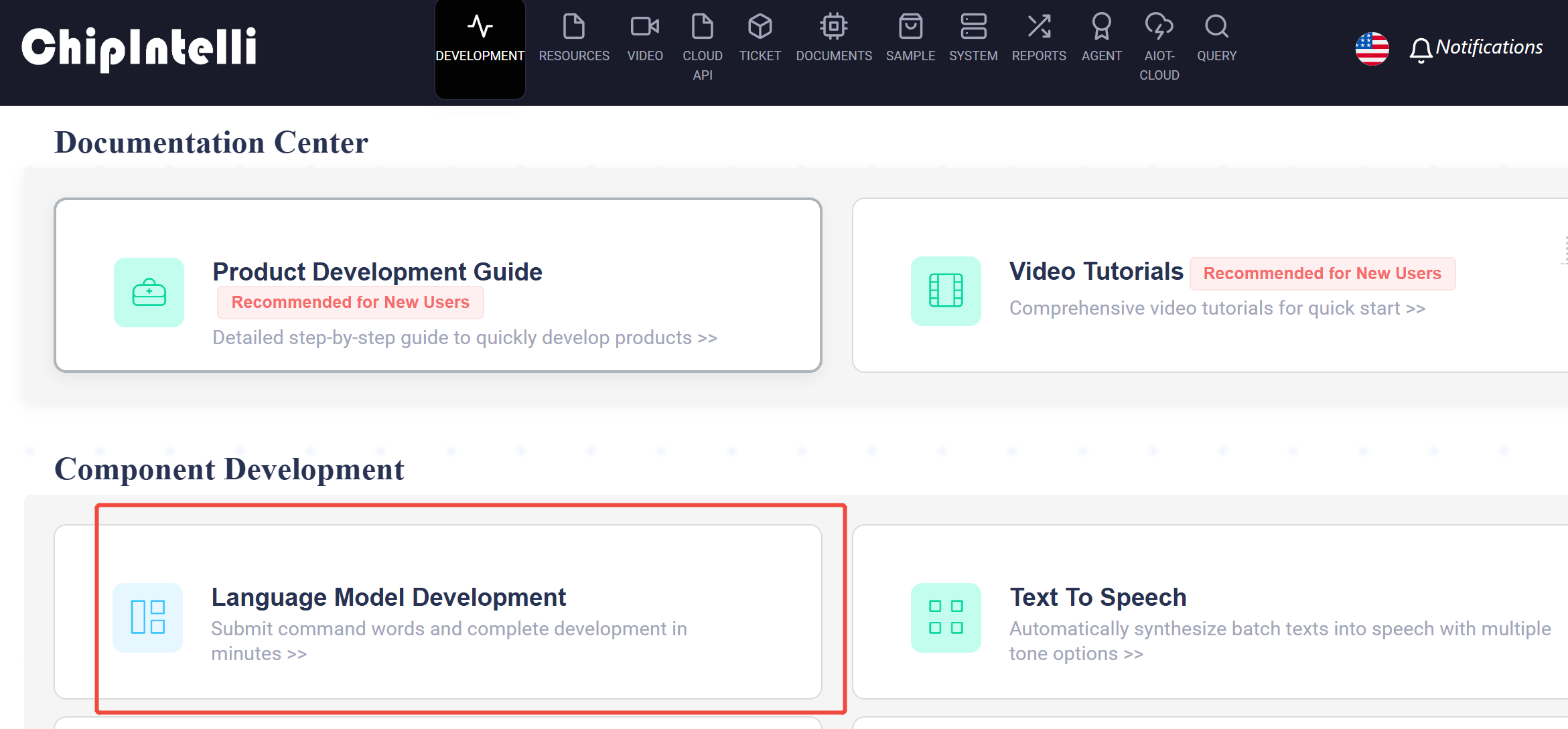
3.1.1. Locate the “Development” icon on the platform
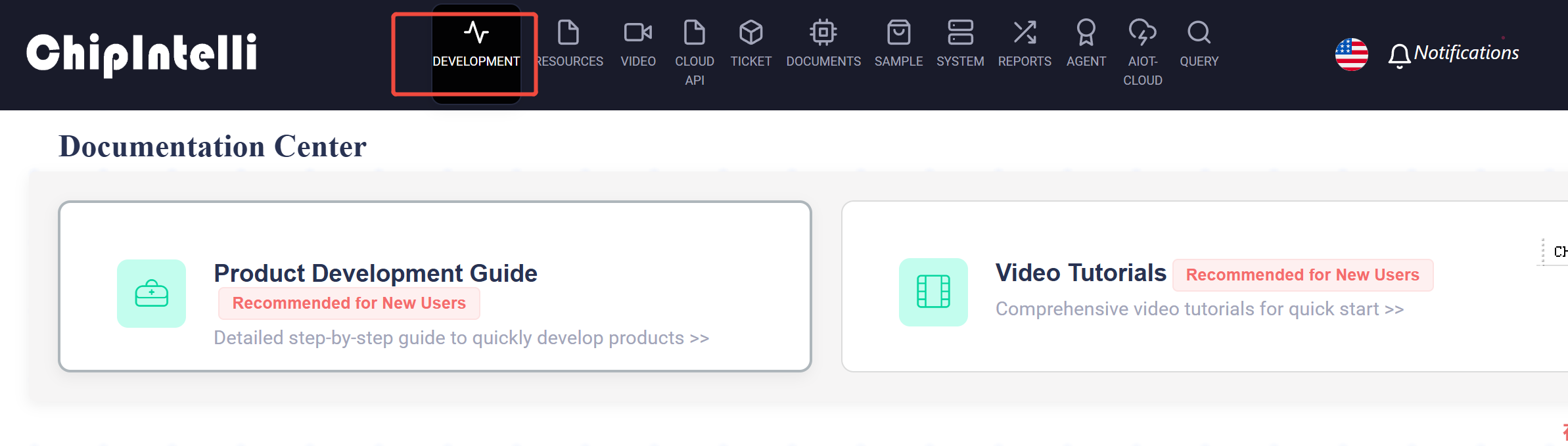
3.1.2. Scroll down and find “Language Model Development”
3.1.3 Click “New Project”
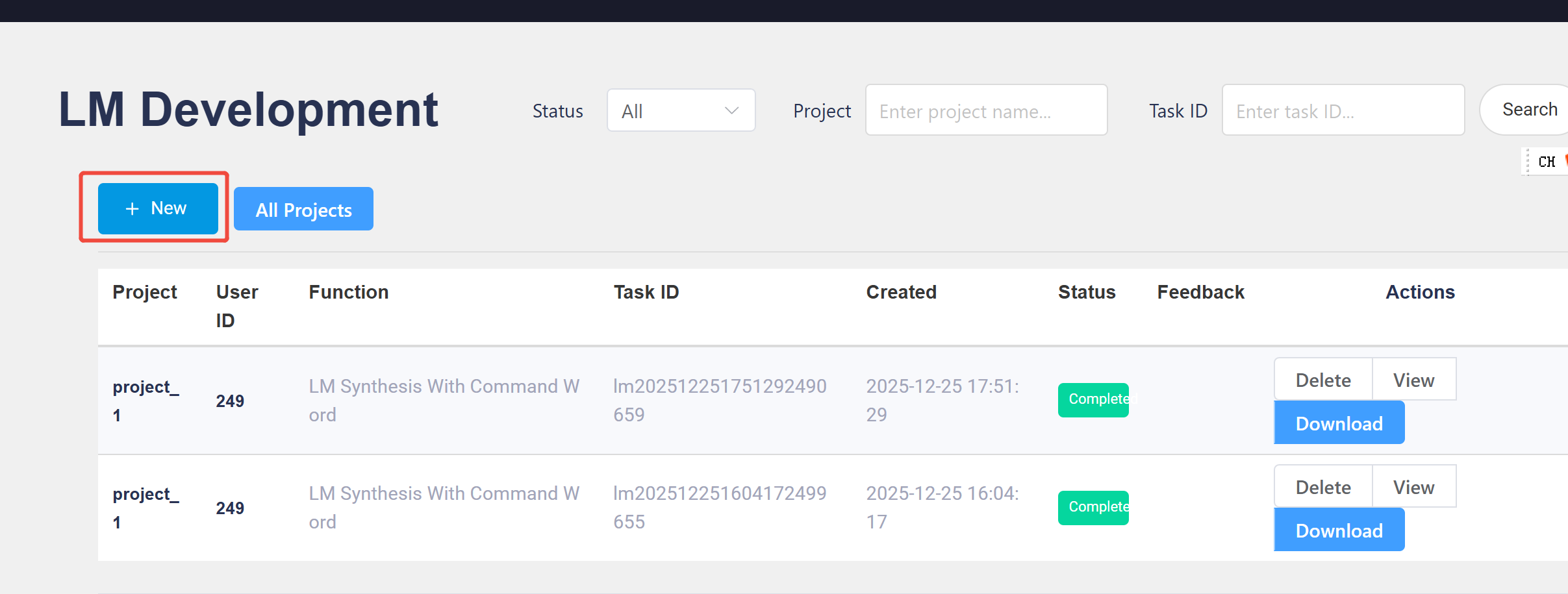
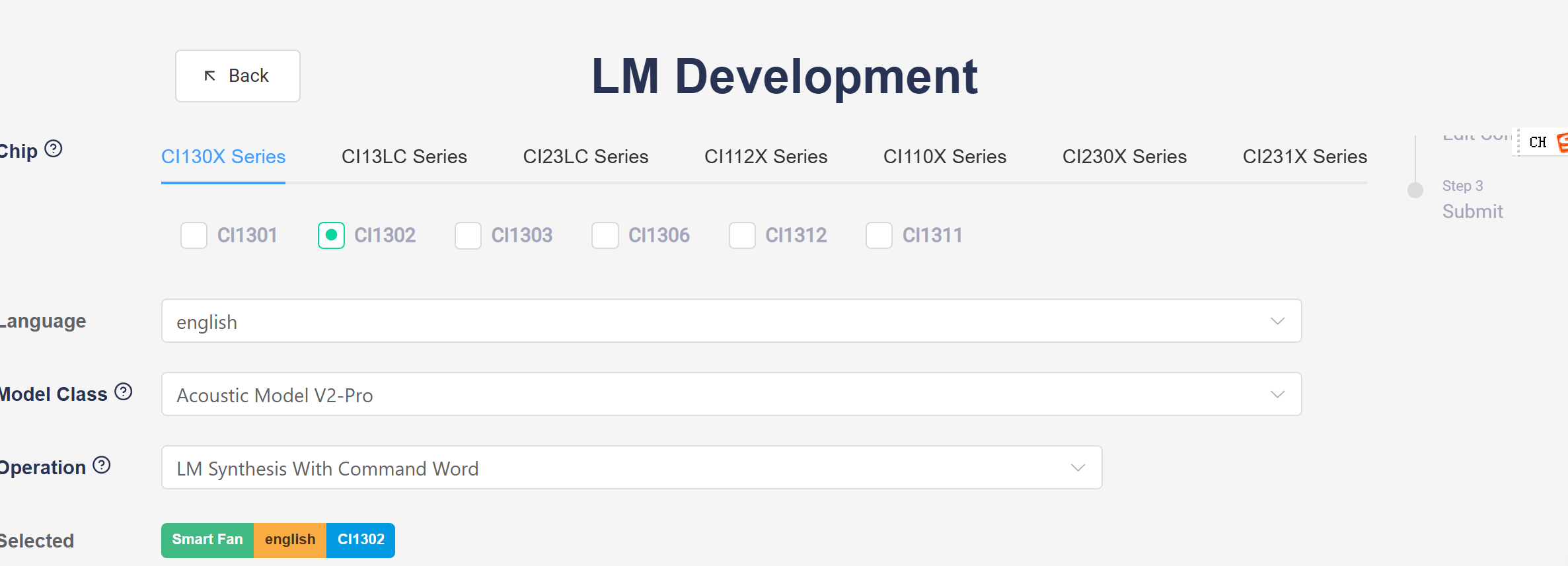
3.1.4. Edit Project Information
a. Project Name: Can be modified according to the actual project name.
b. Application: Select based on your product.
c. Chip: Choose the corresponding chip model.
d. Language: Select Chinese, English, or other languages.
e. Model Class: Choose the appropriate model for your product. The model type relates to the SDK version being used. The “Acoustic Model V2-Pro” supports more entries.
f. Operation: Select “LM Synthesis With Command Word “.
3.1.5. Click the “Continue” button
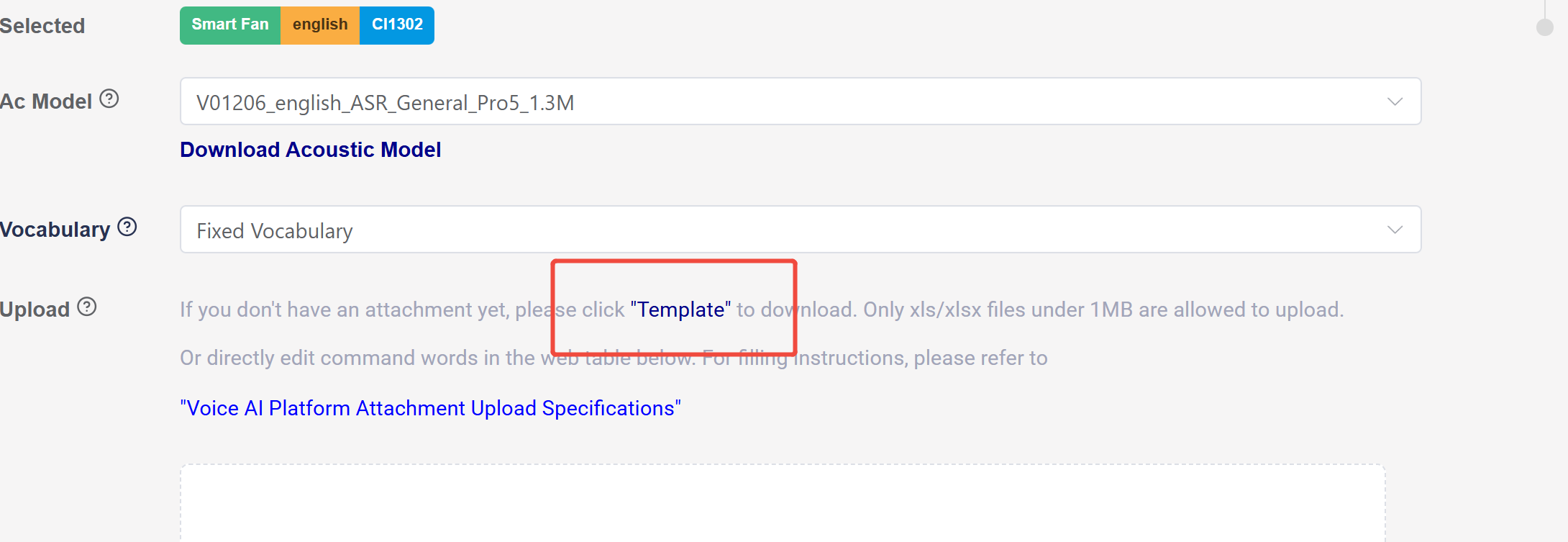
a. For example, we’ll use the acoustic model “V01206_english_ASR_General_Pro5_1.3M”.
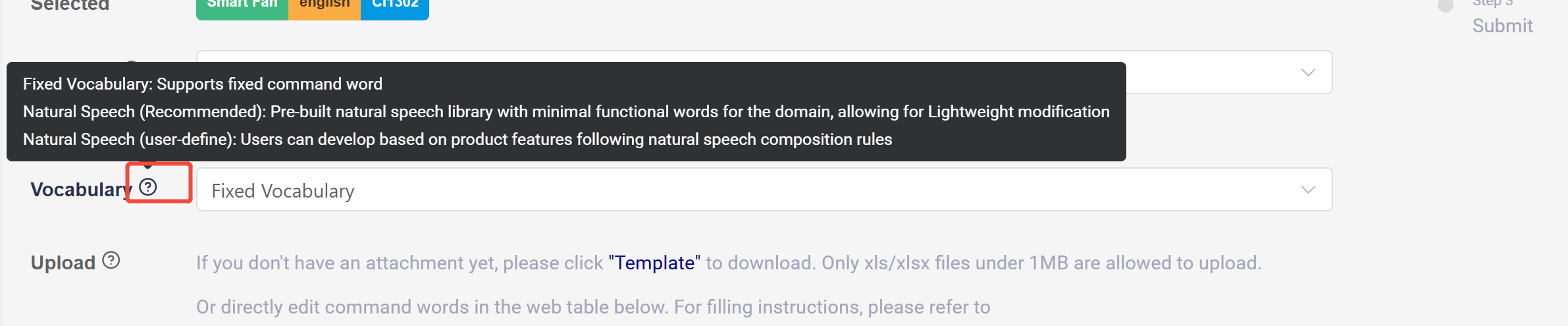
b. Vocabulary: Select “Fixed Vocabulary”. Click the question mark button for relevant instructions.
c. Click the “template” to download the standard form for entering command words.
3.1.6. Edit the downloaded example file “template_english_cmds.xlsx”.
a. Semantic Tags: Arrange in ascending numerical order. The same semantic meaning can use the same number, for example: “turn on air conditioner” and “air conditioner on”.
b. Command Words: These are the product commands that need to be recognized. Specific rules can be found in the second sheet “Instructions” of this file.
c. Command Word Types: There are three types of command words: Wake Words, Command Words, and Junk Words.
Terminology Explanation
-
Wake Word: Words that switch the device from non-wake state to command recognition state.
-
Command Word: Words that instruct the device to perform specific functions.
-
Junk Word: Words that should not be recognized. These are words that might be easily confused with command words, and including them can reduce the probability of false recognition.
For example: For the command word “turn on light”, you might add negative words like “power on”, “switch”, “open door”, etc.
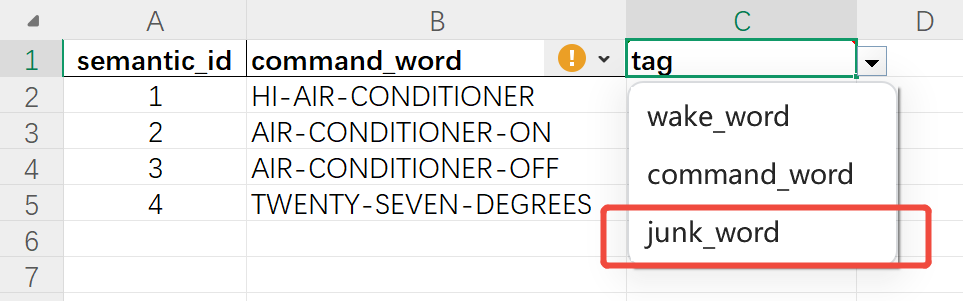
d. After editing the table, you can click to upload or drag it to the “Upload Attachment” area.
e. LM(Languege Model) number: Click the question mark for relevant instructions.
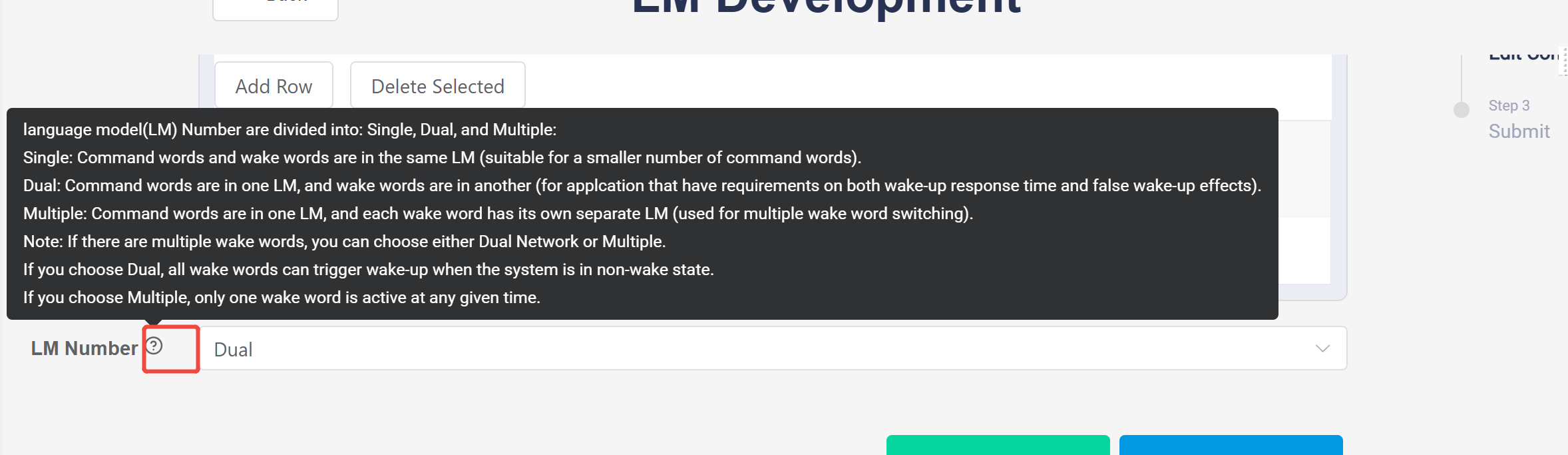
f. Click “Submit”, wait for the platform to complete the process, then download the language model.
3.2. Language Model Development-Word Segmentation
3.2.1. Understanding Word Segmentation
Understanding word segmentation allows developers to define how the system processes audio, ensuring only valid commands are recognized while filtering out accidental or unrelated speech.
Why using Word Segmentation
- Accuracy: Only exact command sequences trigger actions
- Efficiency: Shared prefixes reduce recognition complexity
- Robustness: Explicit rejection paths minimize accidental activations
- Scalability: New commands can be added by extending branches
3.2.1. Example
Think of the system as navigating a decision tree:
Node 1: Start point for all speech recognition
Nodes 2,3,4: Branch points after detecting first keyword
Node 1000: Valid command endpoint (system will execute)
Node 2000: Rejection endpoint (system ignores to prevent false triggers)
Command Example
| Step | From Node | To Node | Trigger Word | Action & Meaning |
|---|---|---|---|---|
| 1 | 1 | 2 | “Living room” | Routes to Living Room Device branch |
| 2 | 2 | >1000 | “Lights on” | VALID: Turn on living room lights |
| 3 | 2 | >1000 | “Lights off” | VALID: Turn off living room lights |
| 4 | 2 | >1000 | “Fan on” | VALID: Turn on living room fan |
| 5 | 2 | >1000 | “Fan off” | VALID: Turn off living room fan |
| 6 | 1 | >1000 | “Bedtime” | VALID: Activate bedtime mode (single command) |
| 7 | 1 | 3 | “Kitchen” | Routes to Kitchen Device branch |
| 8 | 3 | >1000 | “Lights on” | VALID: Turn on kitchen lights |
| 9 | 3 | >1000 | “Lights dim” | VALID: Dim kitchen lights |
| 10 | 1 | 4 | “Computer” | Routes to Rejection branch (common false trigger) |
| 11 | 4 | >2000 | “Turn off” | REJECTED: Phrase "Turn off computer" ignored |
3.2.3. How it works in Practice
Scenario 1: Valid Command
1. User says: “Living room lights on”
2. Path: 1 → 2 → 1000
3. System: Recognizes complete command, turns on living room lights
Scenario 2: Shared Prefix (Efficiency)
- Both “Living room lights on” and “Living room fan on” share the prefix “Living room”
- After detecting “Living room”, system goes to Node 2
- Then waits to distinguish between “lights” or “fan” command
- This shared-path design reduces processing complexity
Scenario 3: False Trigger Prevention
1. User says (to someone else): “Computer turn off”
2. Path: 1 → 4 → 2000
3. System: Recognizes this as a common phrase NOT meant for smart home, takes NO action
3.3. How to Develop LM with Word Segmentation
3.3.1. In the language model development process described above, at step 4, select “LM Synthesis with Word Segmentation “.
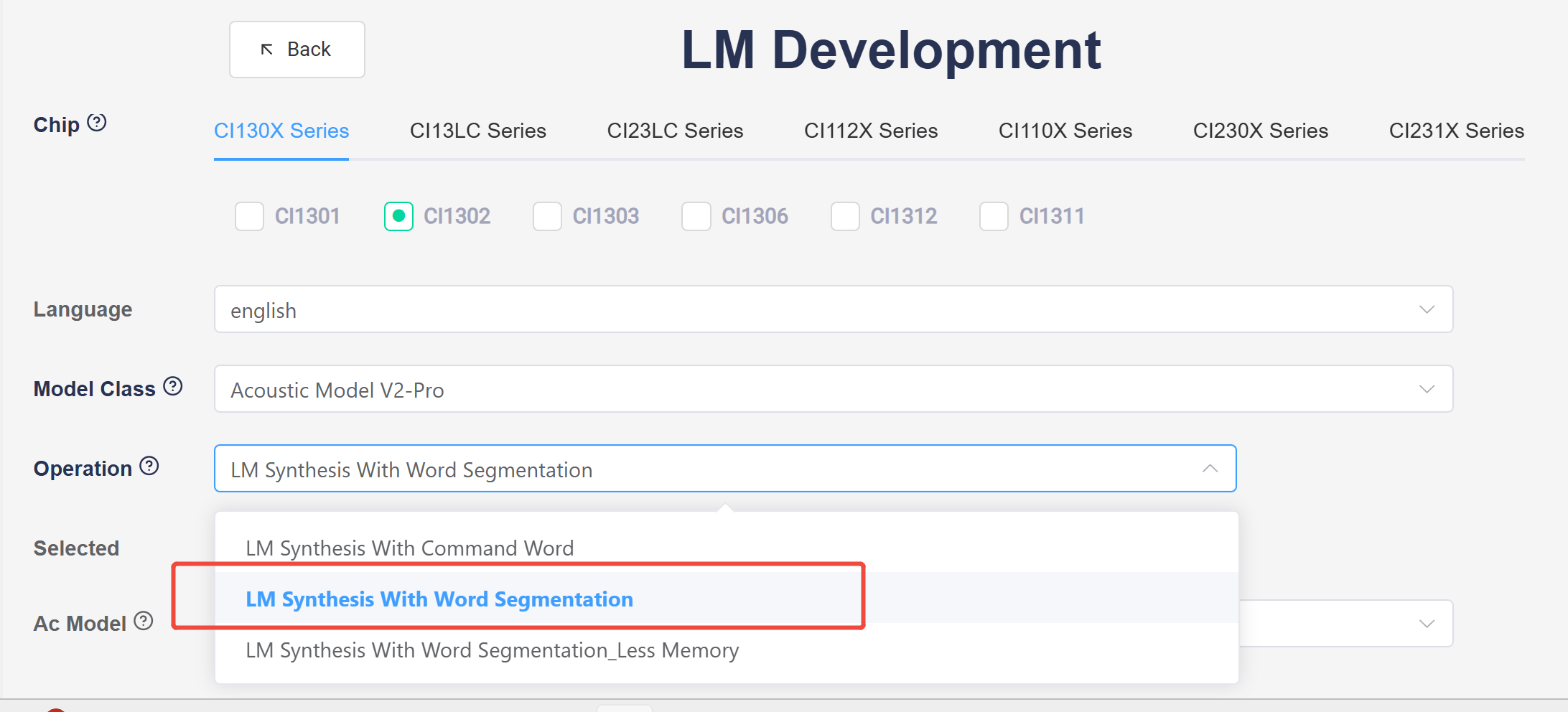
3.3.2. Upload the word segmentation file by dragging it to the upload area or clicking to select the file, then click the “Submit” button.
3.4. Practical Development Notes
a. If you have existing command word segmentation: Use the word segmentation to develop the language model.
b. If you don’t have existing command word segmentation: First develop an language model using the command word table. The downloaded files will include a word segmentation file that you can then modify by adding, deleting, or optimizing entries.
4. Language Model Directory and Important Notes
4.1. The language model must be placed in the specified directory:
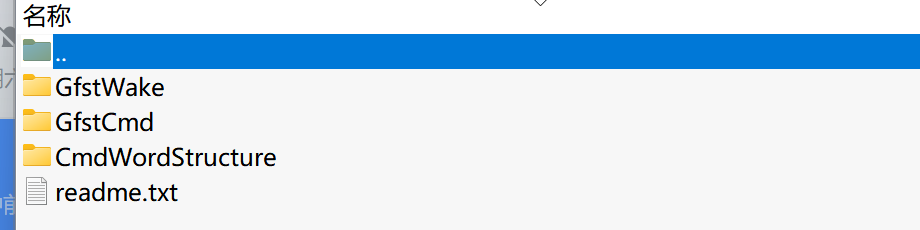
Step 1, locate the two .dat files seperately from “GfstWake” and “GfstCmd” folders;
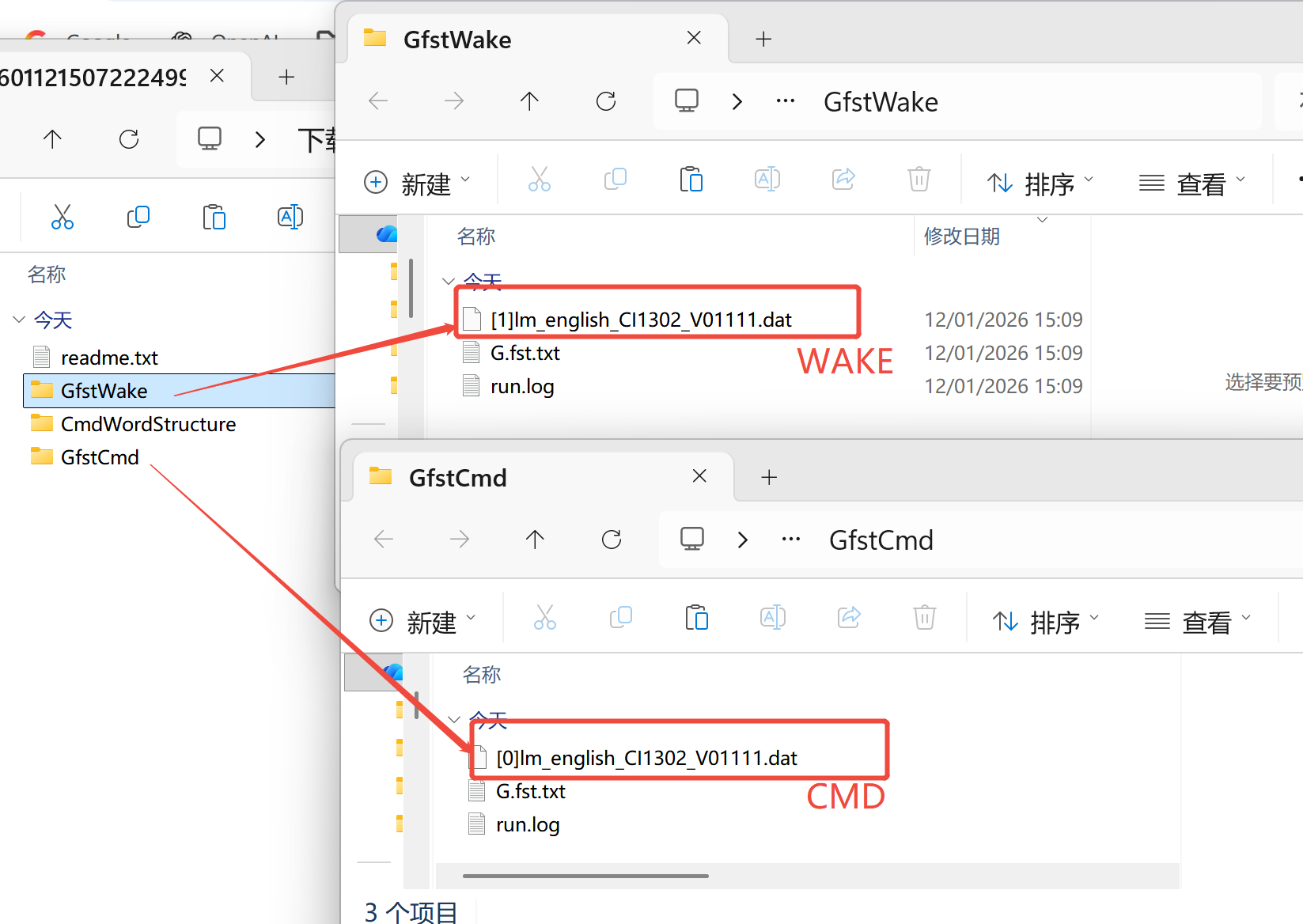
By default, file start with[0]represents CMD files; file start with [1] reprtesents wake(word) files;
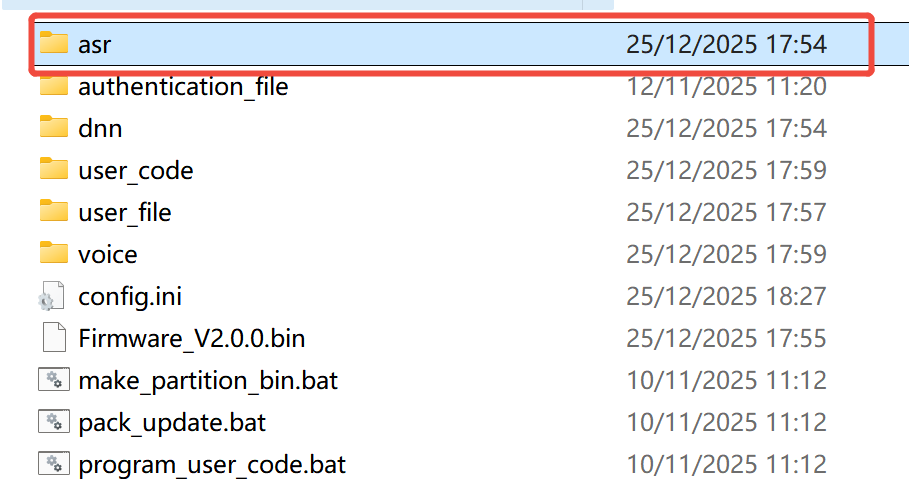
Step 2, copy the 2 .dat files, paste the 2 files to the 📁asr folders to replace the original .dat files.
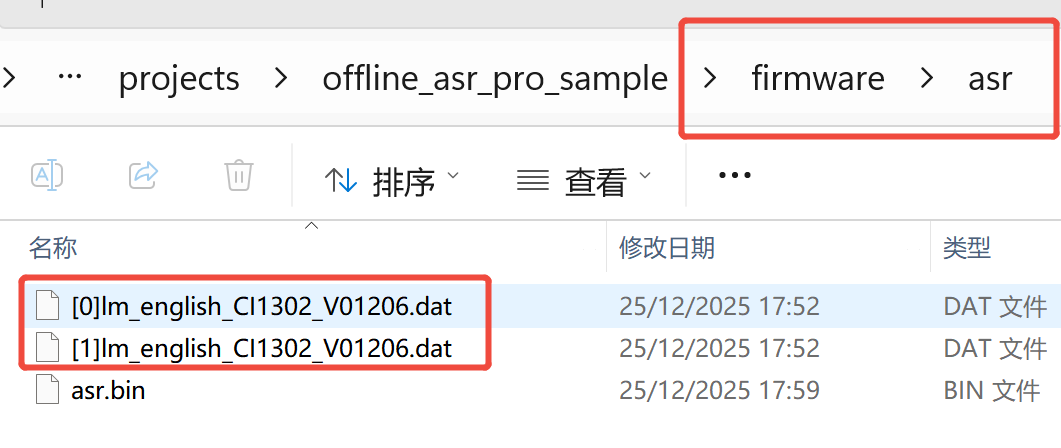
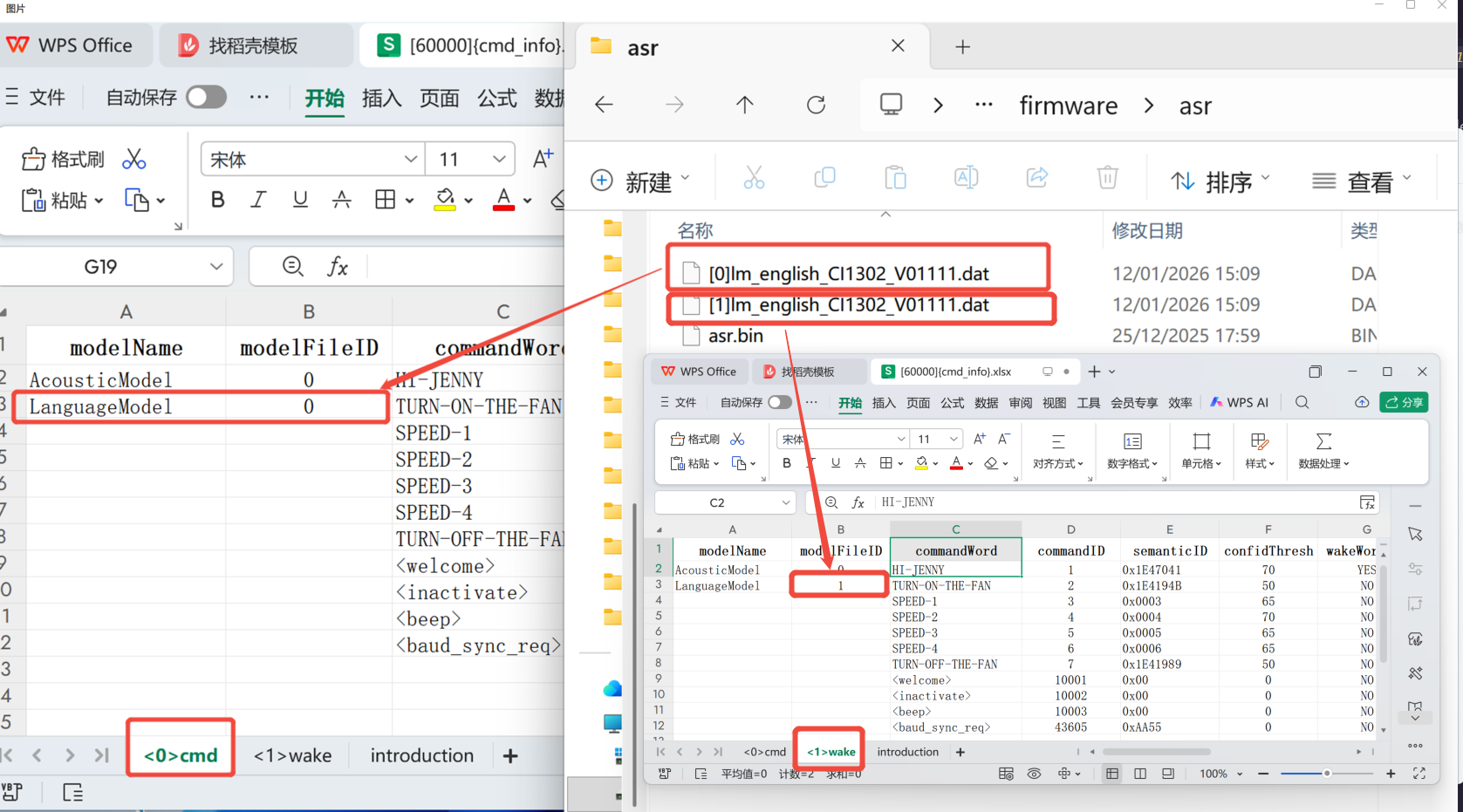
4.2. The number prefix [0] or [1] of the language model must match the modelfile ID in the [60000] table in user_file.
5. How to Verify CMD Modification
5.1. After developing the language model and placing it in the appropriate folder, the first step is to click make_partition_bin.bat. This step converts multiple files including language models, acoustic models, command word list (or [60000] tables), and voice prompts (voice folder) into binary files, such as asr.bin, voice.bin etc, that can be packaged into firmware.
5.2. The second step is to click pack_update.bat. This step merges all components into a complete firmware.
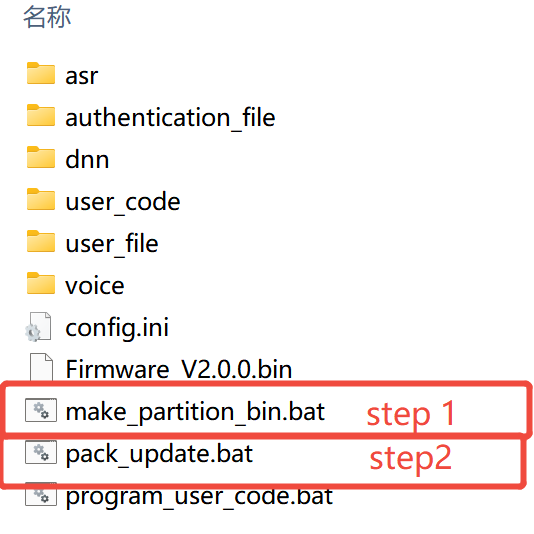
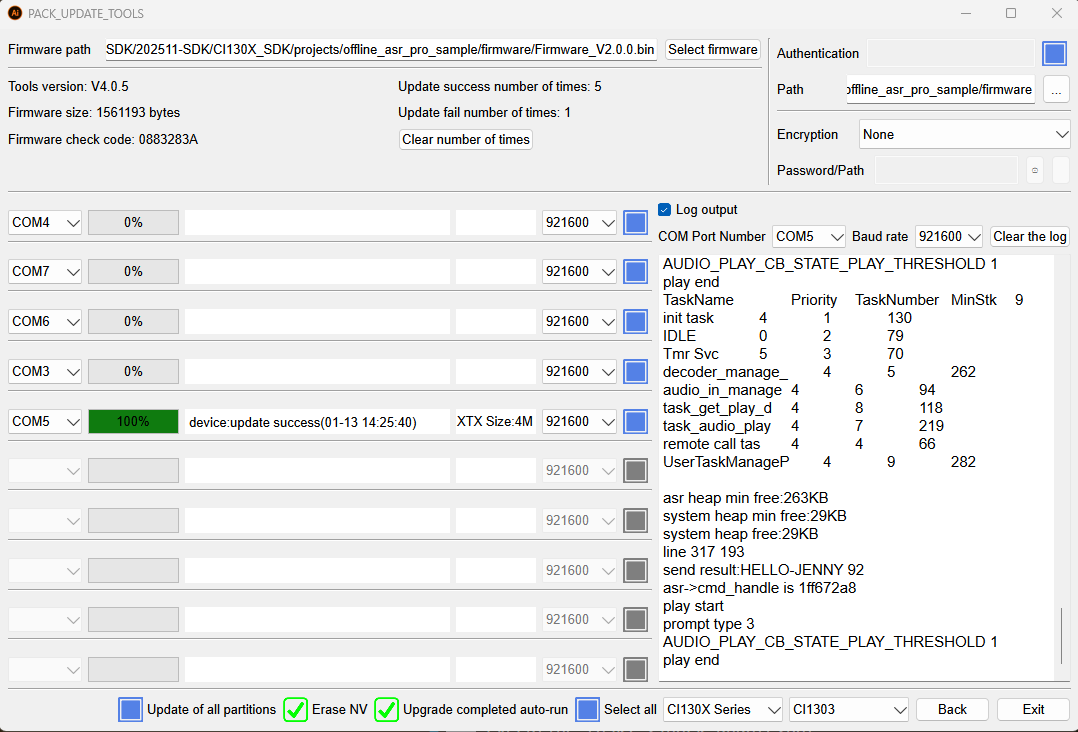
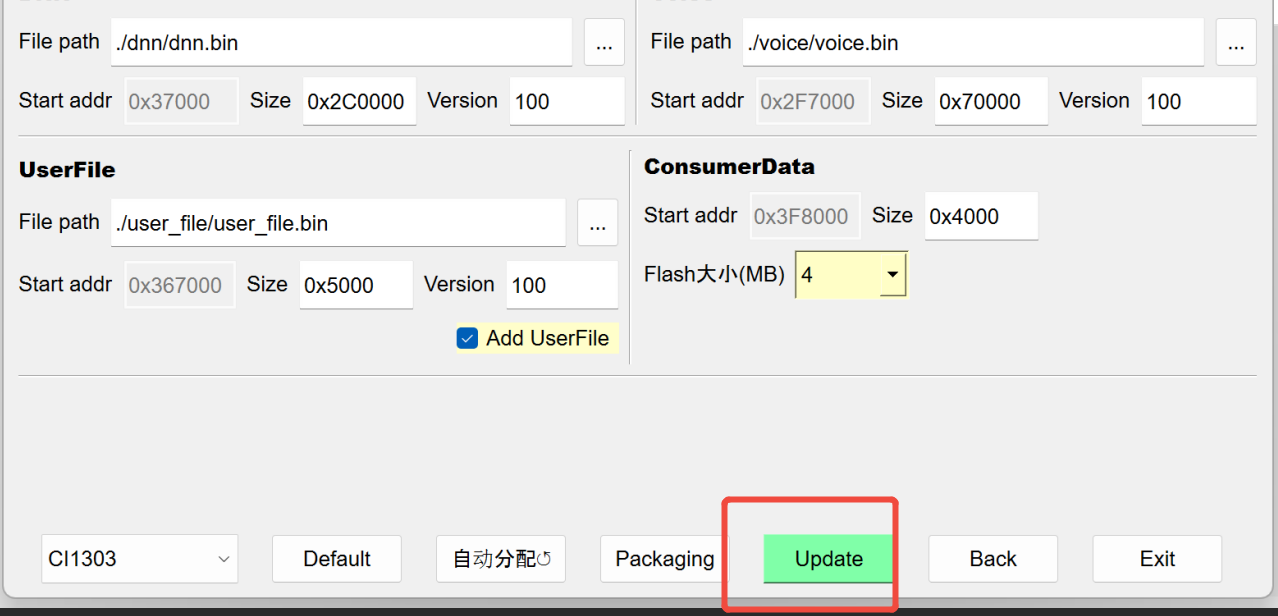
5.3. After generating the firmware, click “Update”, select the appropriate COM port, restart the chip, and wait for the progress bar to reach 100% and turn green, indicating successful programming.

5.4. After porgramming is complete, check the log output. If the modification was successful, speak the wake word or command words and the recognized text will be displayed in the log.