Command Words and Firmware Development Guide
1. Voice Recognition Processing Flow and Required Resources
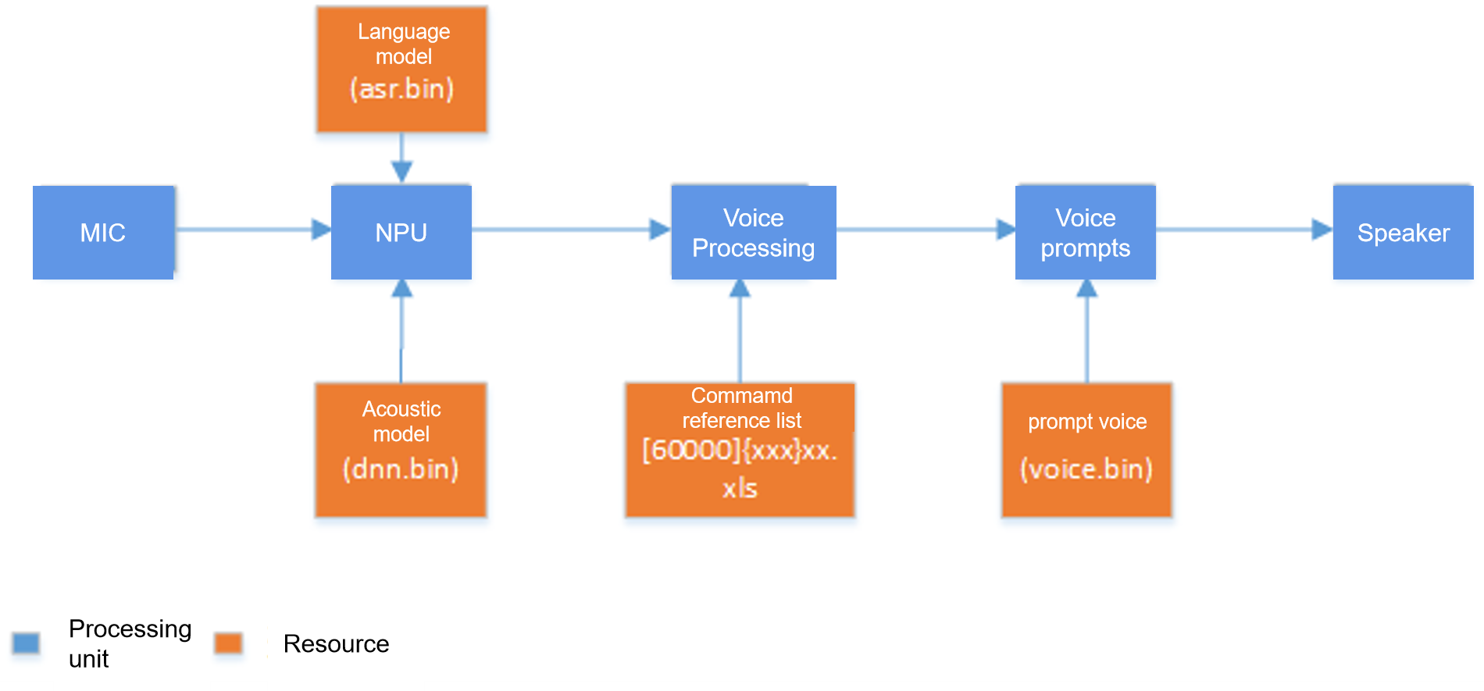
The voice recognition process and required resources are shown in the figure below. The microphone converts voice into digital signals, which are then sent to the neural network (NN) for recognition. The NN recognition requires two resources: an acoustic model and a language model. After NN recognition outputs a string, the system searches for this string in the command word information table. If not found, it’s considered a false recognition and will be ignored. If found, it’s a valid recognition, and the system will retrieve relevant information based on the recognized command word, perform corresponding application function processing, and finally call the prompt sound player to play the prompt sound.
Note
- Language Model: Generated based on command words, used for NN recognition.
- Acoustic Model: Used for NN recognition, typically related to language, application scenarios, and other factors.
- Command Word Information Table: Stores information related to command words, such as command strings, whether it’s a wake word, corresponding prompt sounds, etc.
- Voice Prompts: Used for voice feedback after recognizing command words, currently supports MP3 format.
The following sections will explain how to generate the required resources.
2. Creating Language Model Files
2.1. Accessing the Development Interface
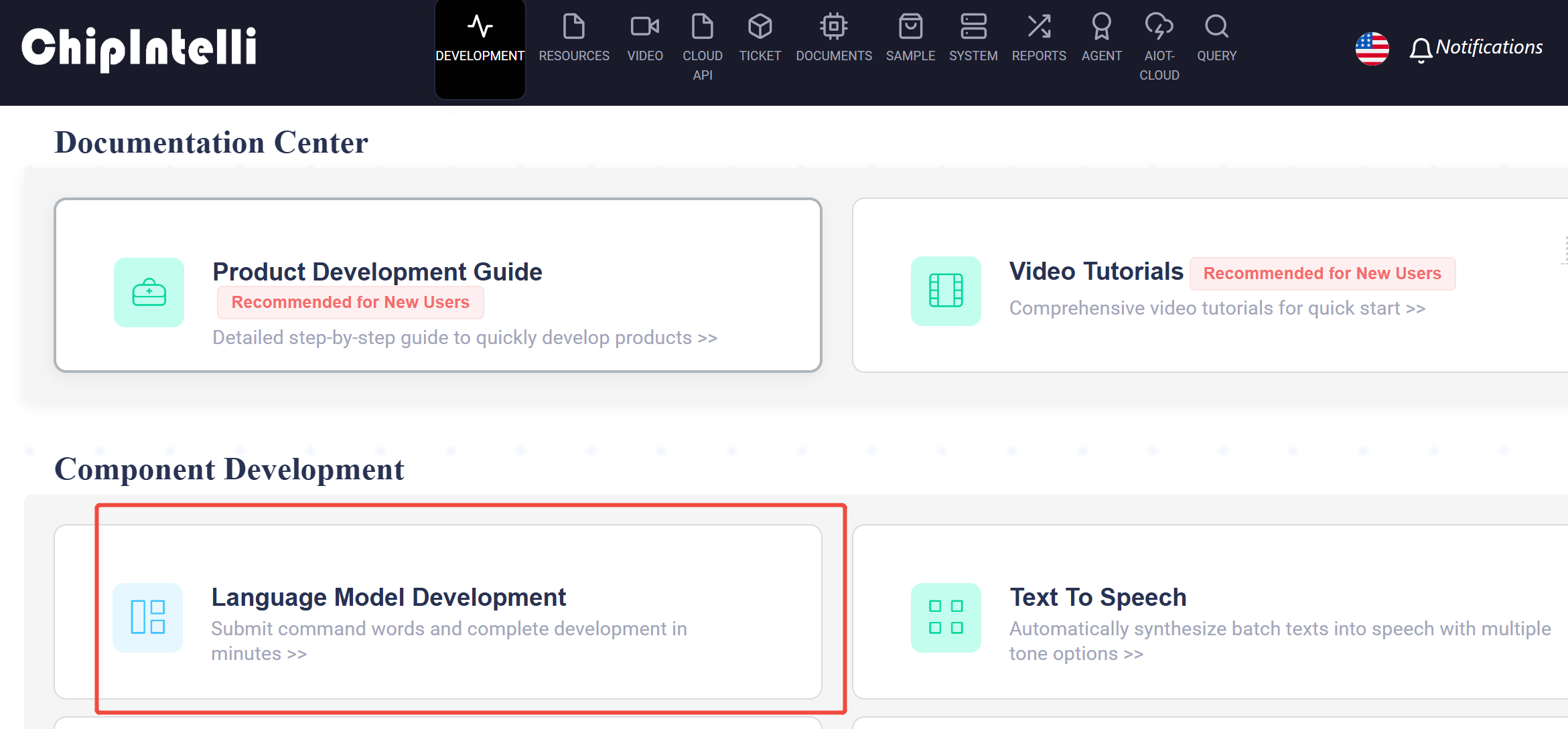
- Log in to Chipintelli AI Platform, and as shown in the figure below, click the (Language Model Development) icon to enter the language model interface:
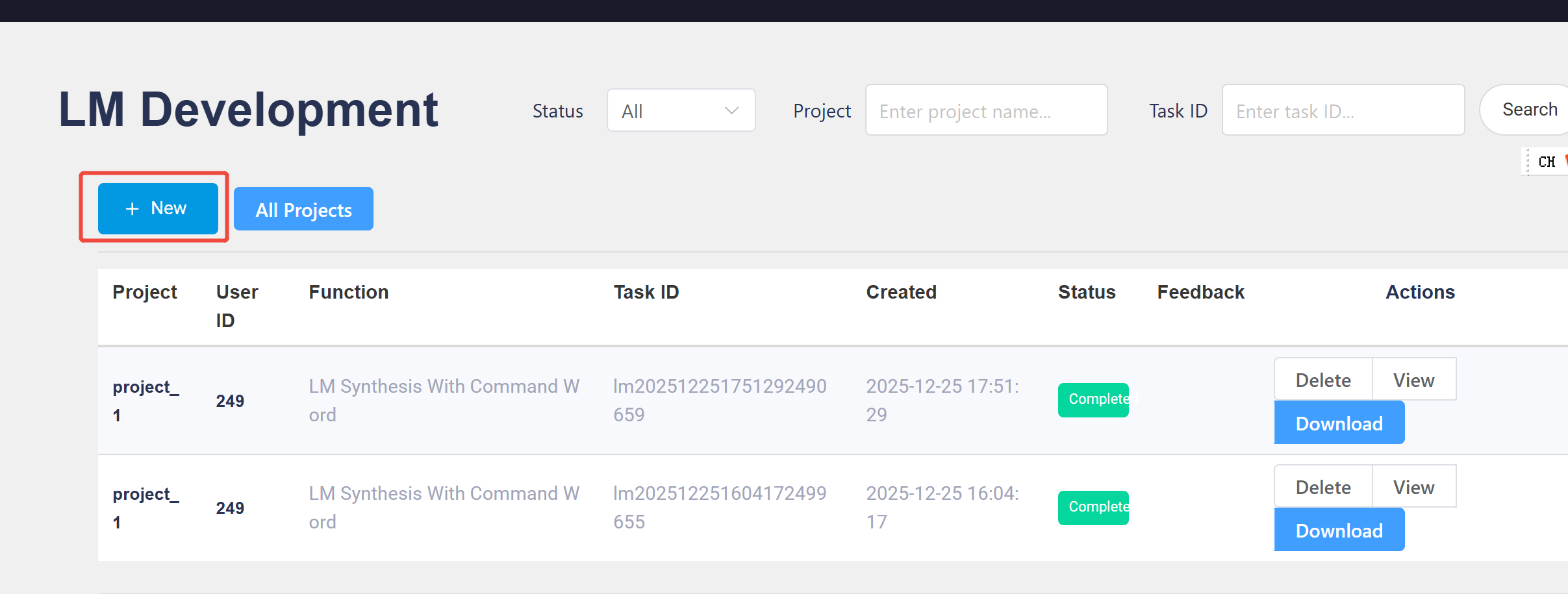
- Create a new project:
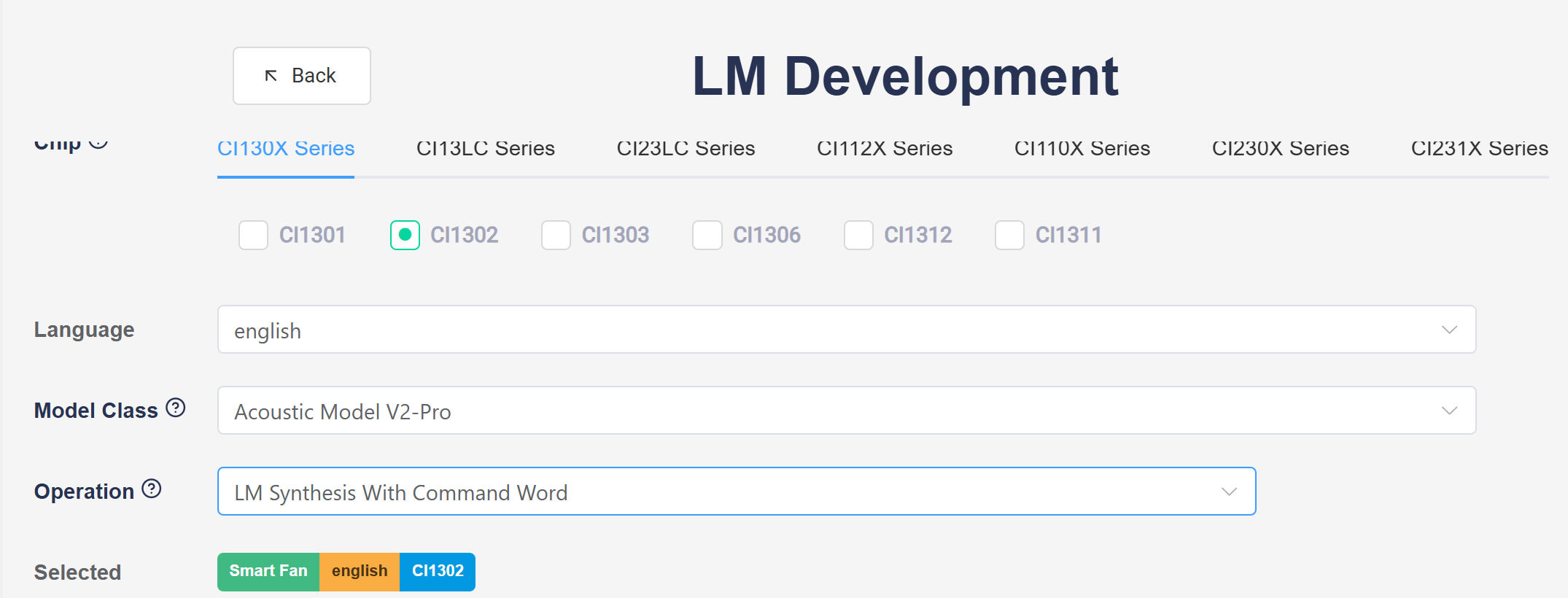
- LM development interface: First fill in the basic information, then edit the command words, and finally submit for processing
2.2. Downloading the Acoustic Model
- In the command word editing interface, after selecting the acoustic model, you can download it
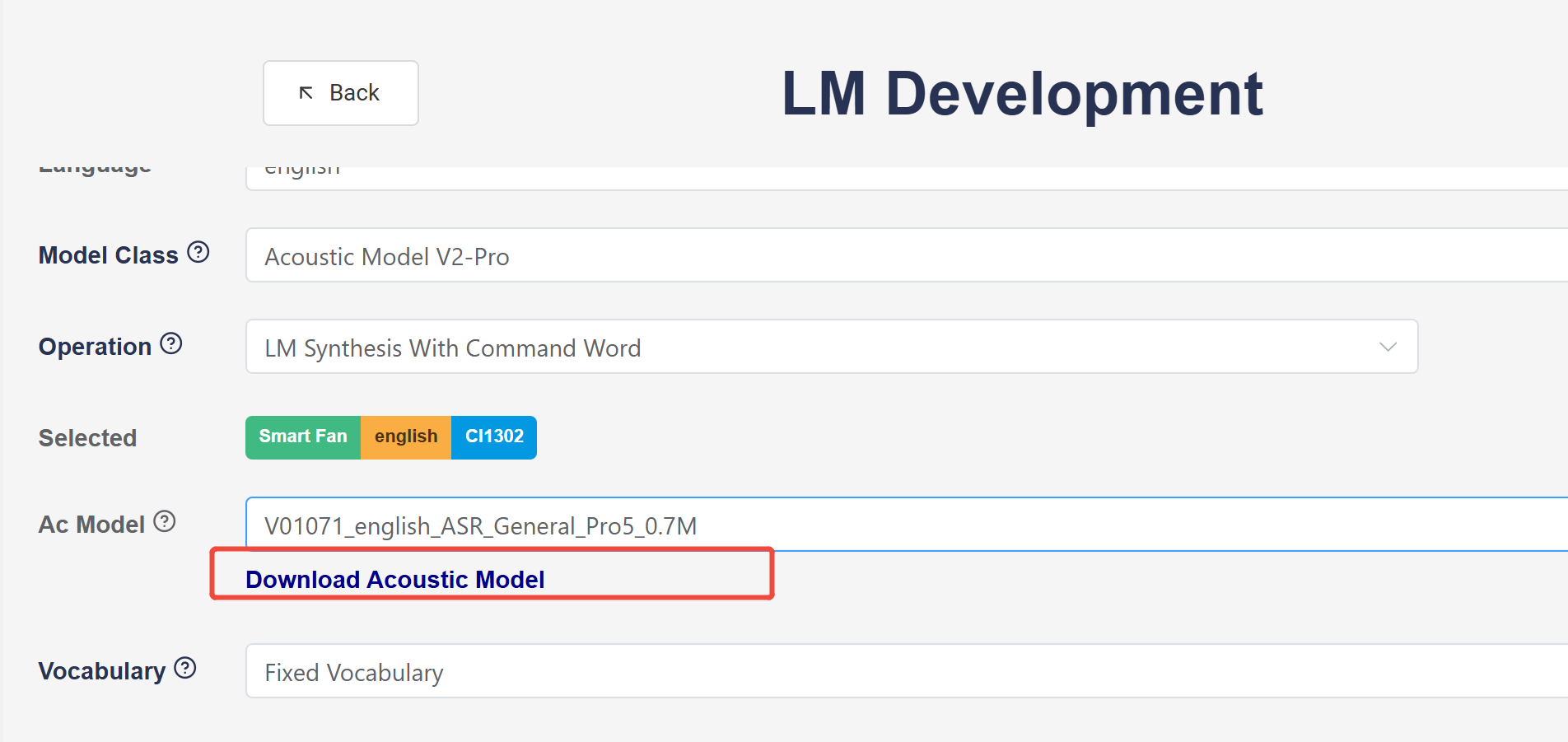
- Extract the downloaded acoustic model package to get the acoustic model:

2.3. Downloading the Language Model
- In the language type dropdown, select Chinese, English, Japanese, or Korean; you can download sample attachments for the corresponding language.
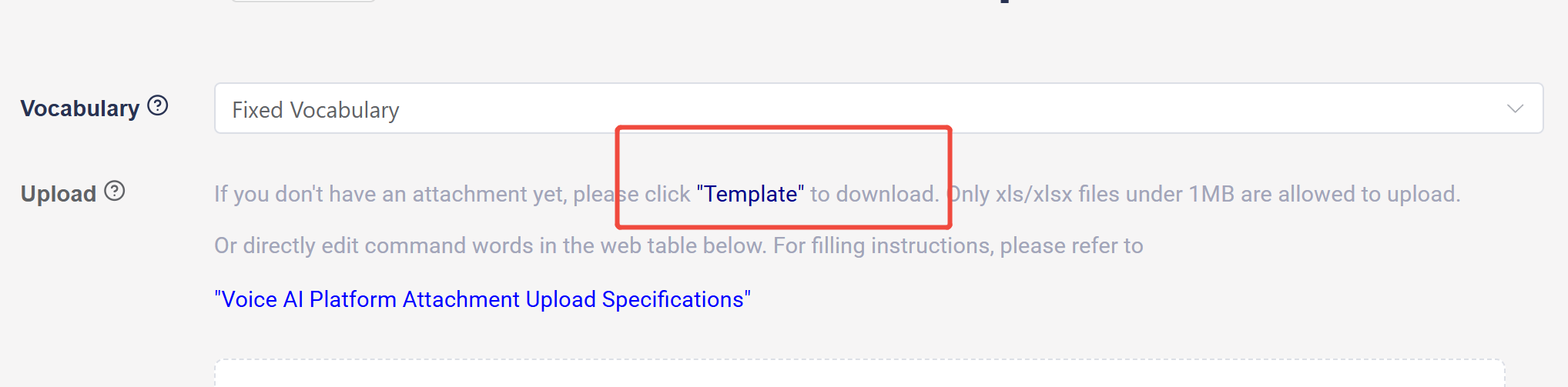
- Open the downloaded English template file and edit the command words according to the file format:
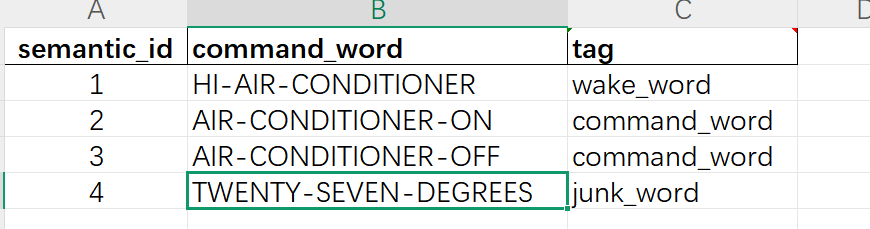
Note
- Command Word: The string of command words that need voice recognition.
- tag: Specifies whether the command word is a wake word. If a wake word is specified, the platform will generate dual-network data.
- Upload the command word list file and submit.
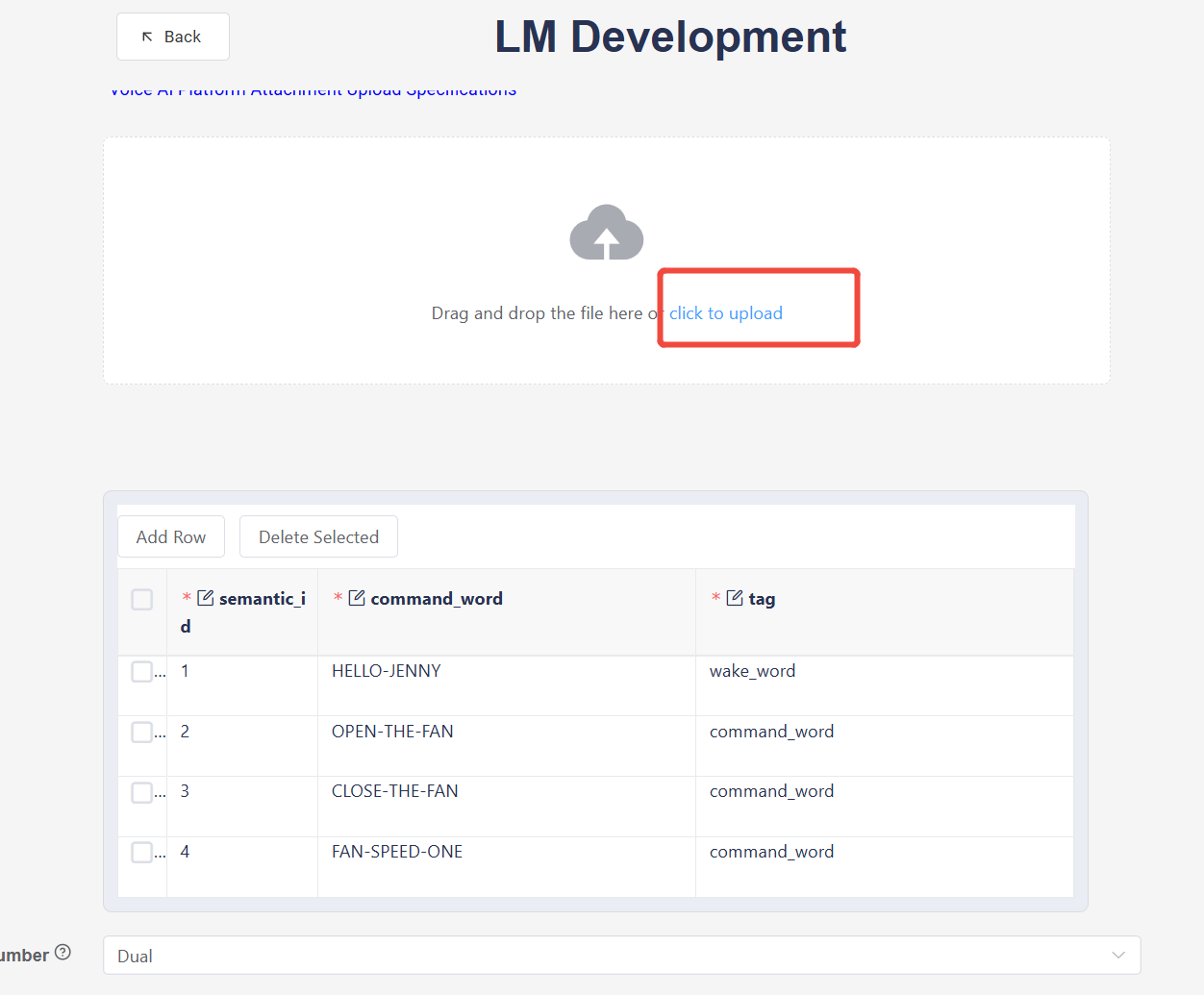
!!! note “Note
Dual-NetworkLM number: To improve wake word recognition, a separate recognition model is created for the wake word, while other command words use another model. This means the project uses two neural network models, referred to as dual-network.
-
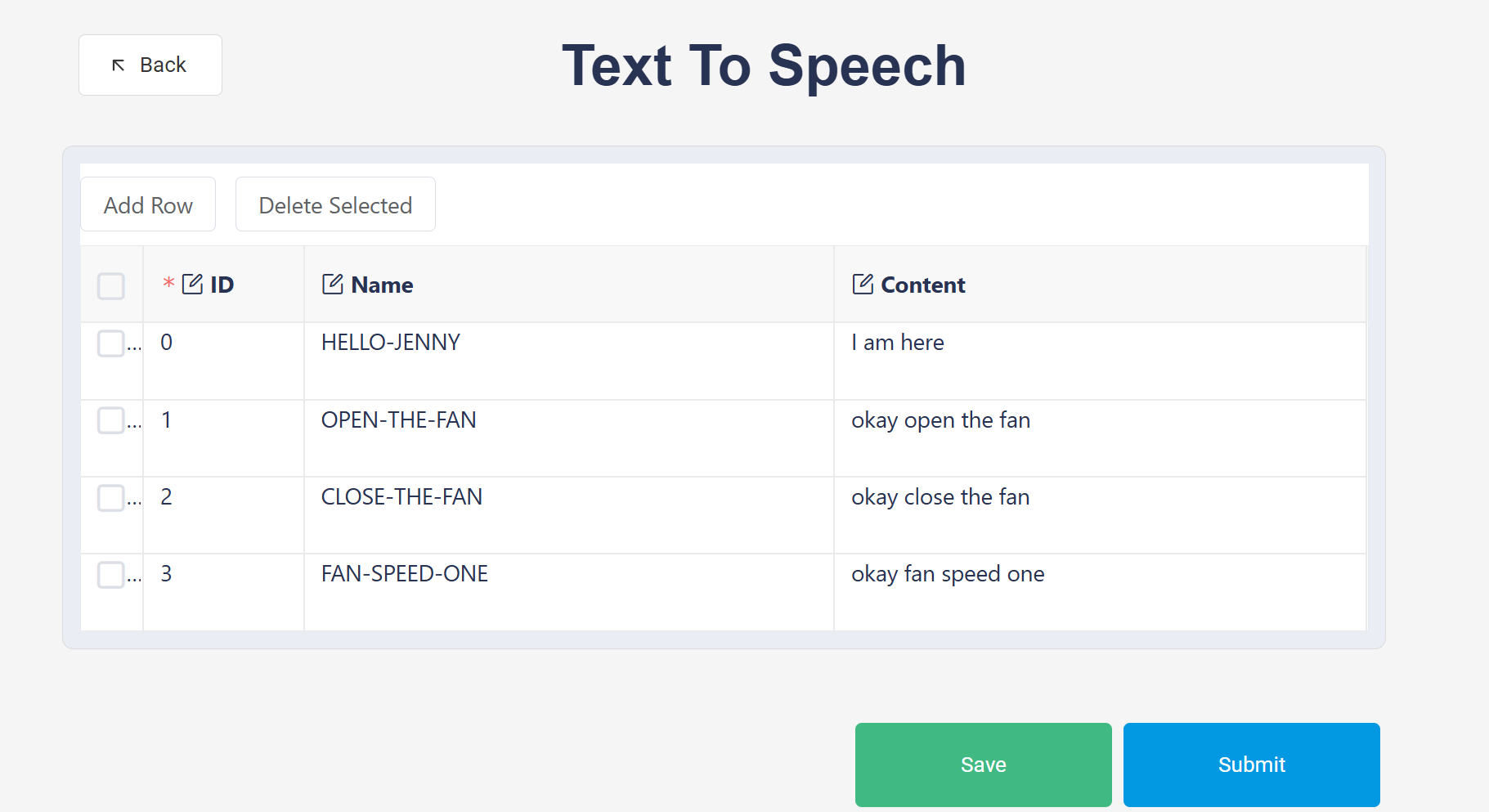
If you have only limitted numbers of commands, you can directly add command words in the command word information table by clicking “Add Row”, then click “Submit” to proceed with LM development.
-
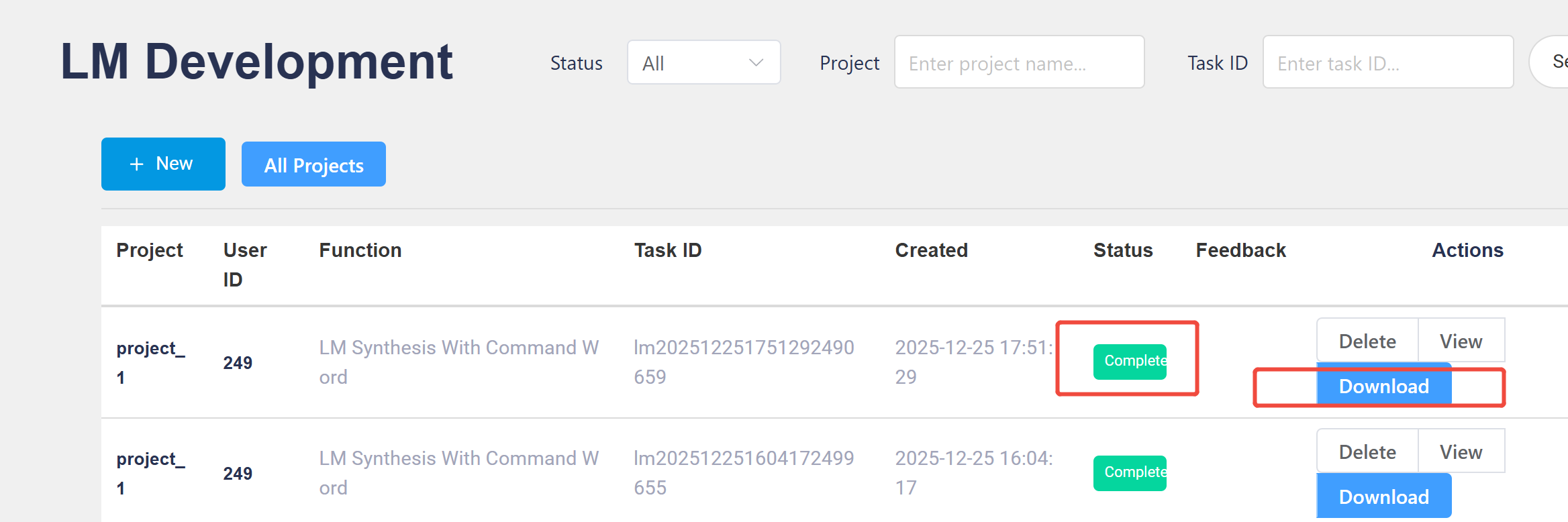
The platform will then load and generate the language model. Please wait until the current process shows “Completed”, then click “Download” and the files will be automatically saved to your downloads folder:
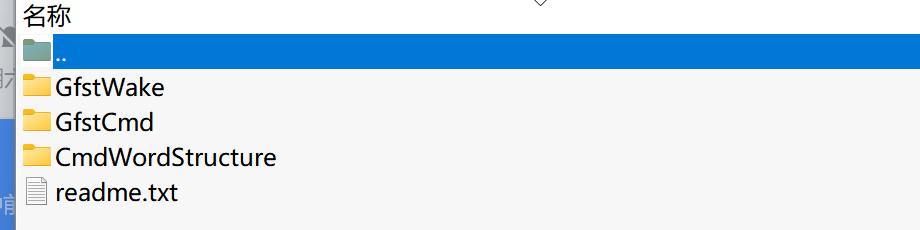
- Extract the downloaded language model package to get the command word information table file:
[60000]cmd_info.xlsxin 📂CmdWordStructureand the command word/wake word language model fileasr_english_xxx_xxx.datin 📂GfstWakeand 📂GfstCmd:
3. Developing Voice Prompts (TTS)
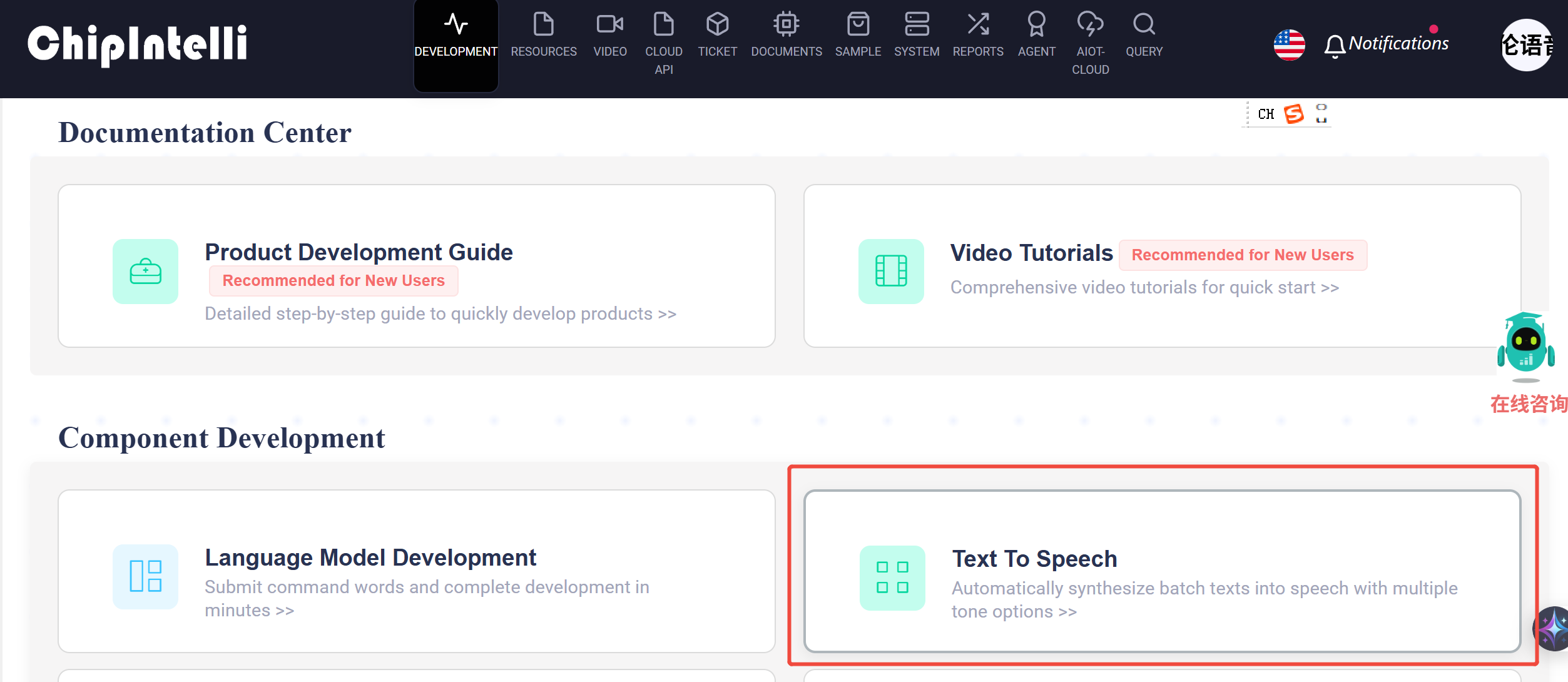
- From the platform’s main menu, go to the “TTS” interface:
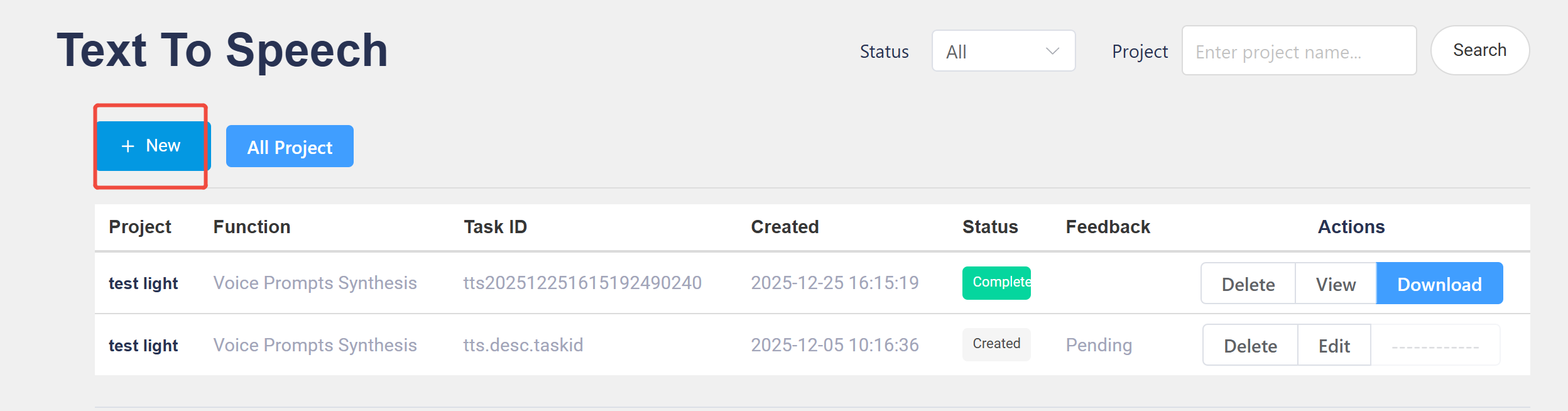
- Create a project:
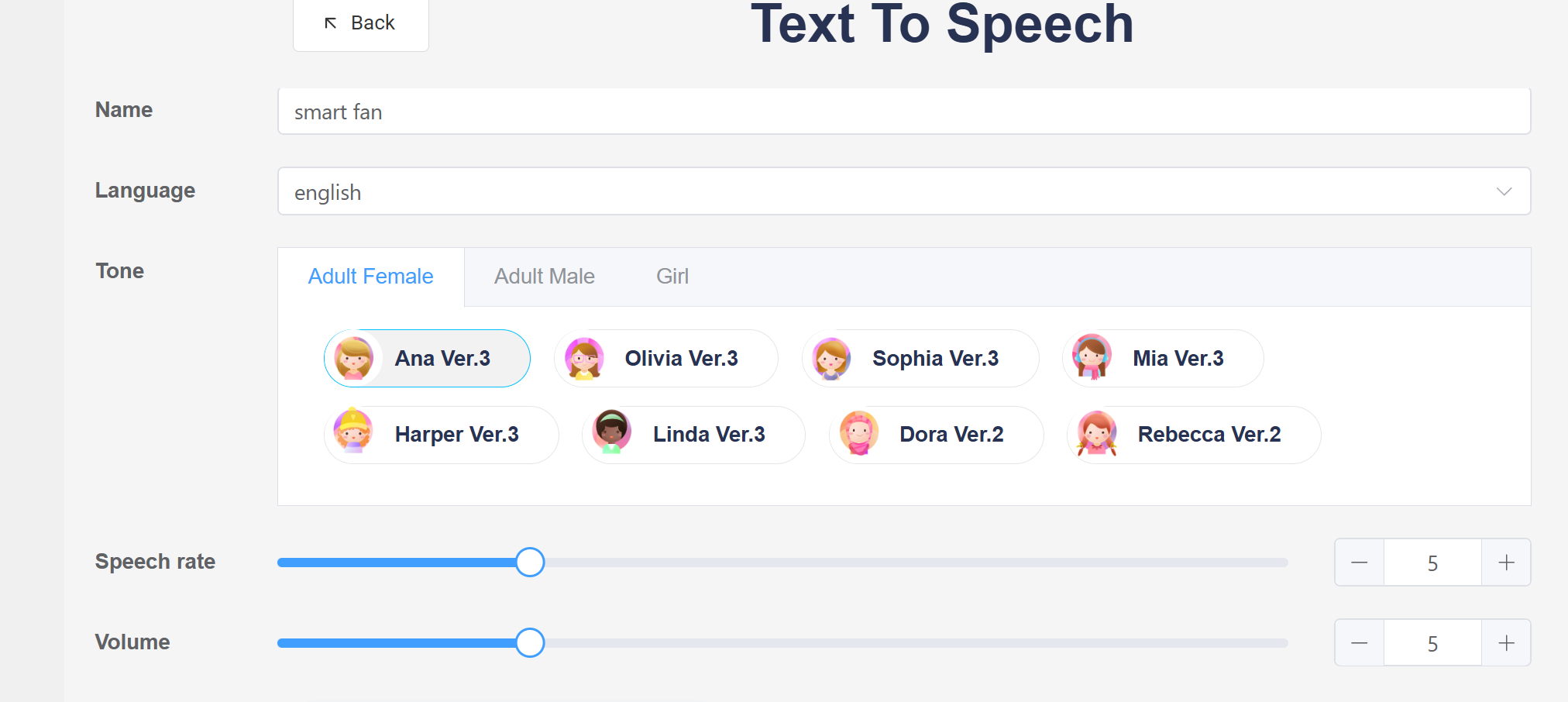
- Fill in the basic information:
1. Language: Dropdown to select Chinese, English, or Japanese.
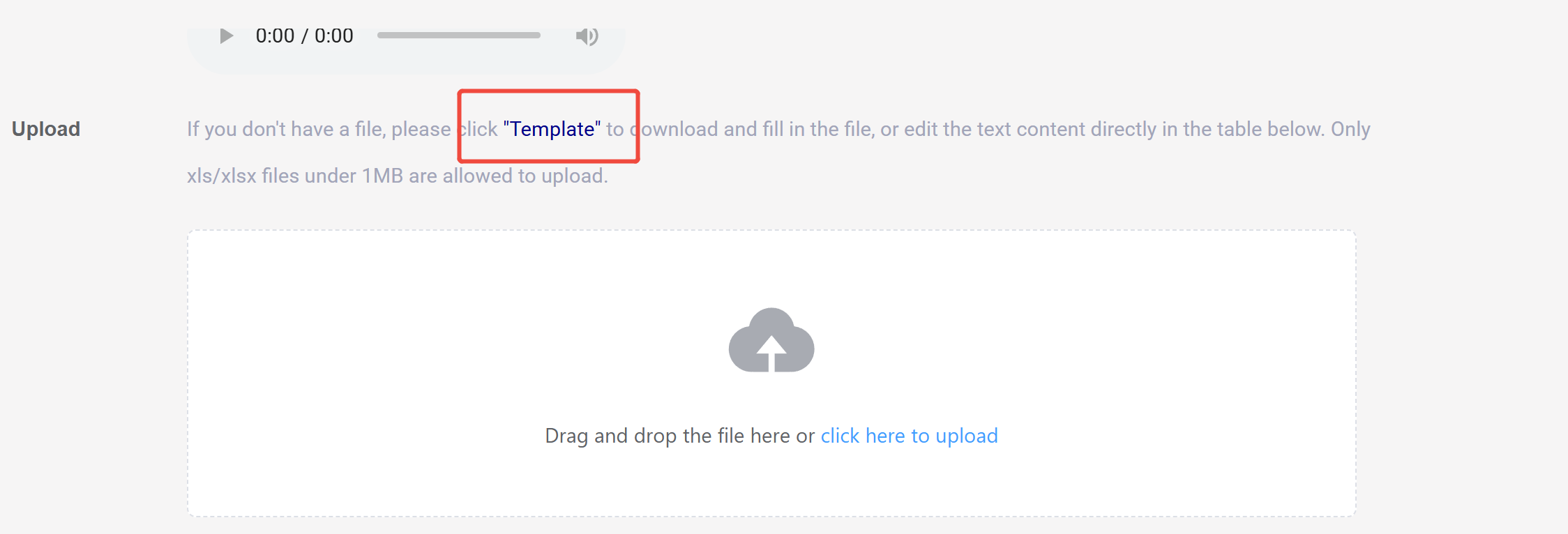
2. Download Sample Attachments: Based on the selected language type, samples in Chinese, English, or Japanese will be available.
3. Tone: Choose different voice timbres.
4. Preview: Listen to the selected voice timbre.
- Download the sample file:
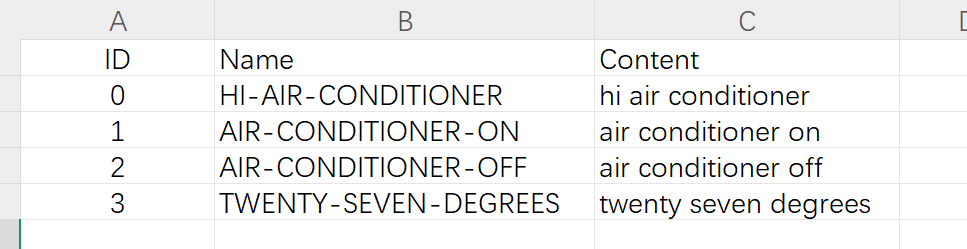
- Open the downloaded template file. Examples in English are as follows:
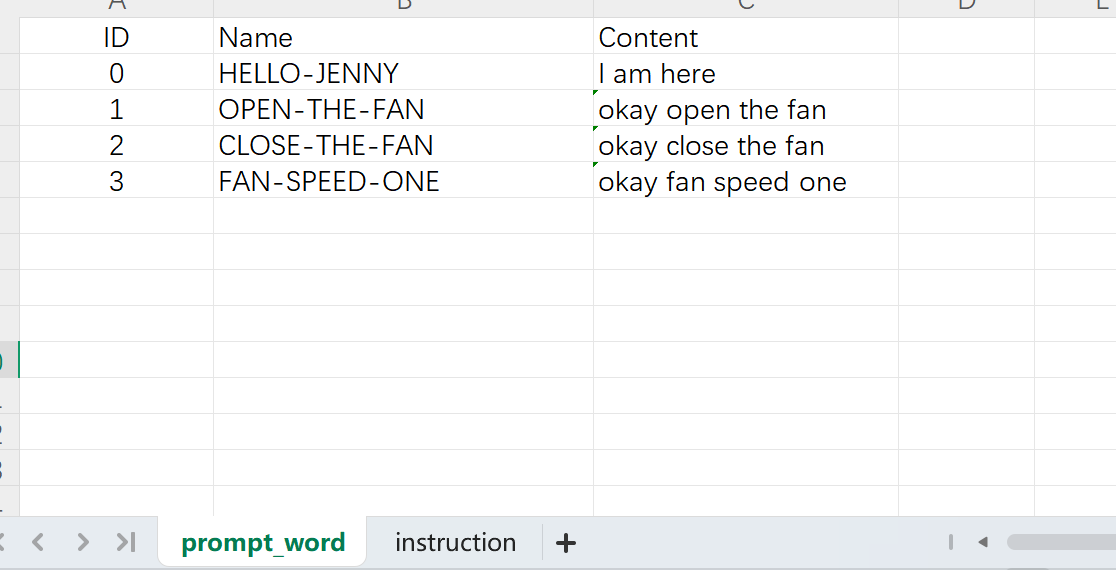
- Edit the voice prompts to be generated according to the template format:
Note
- ID: Specifies the ID number of the generated audio file.
- Name: Specifies the filename of the generated audio file.
- Content: Voice content (commas can be used as separators between words, but no spaces are allowed).
Tip
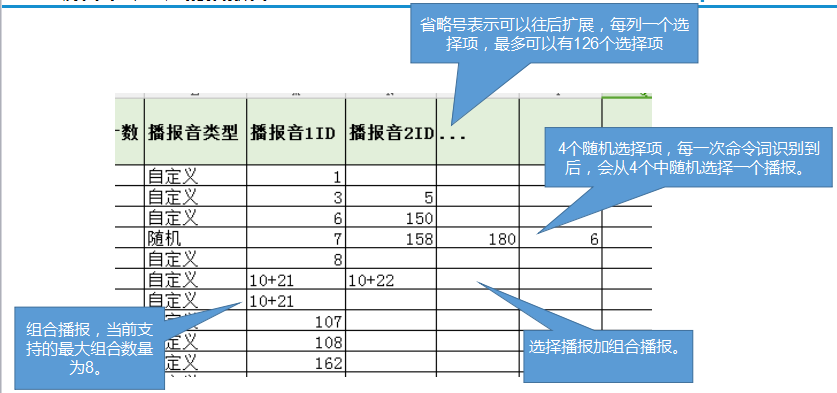
There are some rules for creating voice prompts that can help reduce firmware size and save FLASH space. The SDK supports combined playback and selective playback, allowing you to extract common phrases and create a single audio file. For example, with phrases like “open space,” “open TV,” “open fan,” “open desk lamp,” and “open living room light,” all containing the word “open,” you can create a separate file for “open” and associate it with the command words in the command word information table using combined playback.
For example, a power-on prompt might be “I am xxx, you can use xxx to wake me up.” This can be split into 4 audio files:
- I am
- xxx
- you can use
- to wake me up
In the command word information table, you would enter “1+2+3+2+4” to associate the audio IDs.
Here, “xxx” can represent multiple names. By using the combined and selective playback features, you can choose the appropriate audio to play based on the program context, eliminating the need to generate a separate set of voice prompts for each name.
- Return to the platform’s “text to speech” interface, fill in the relevant project information, upload the edited audio string file, and click the “Submit” button. The platform will start generating the voice, which may take some time.
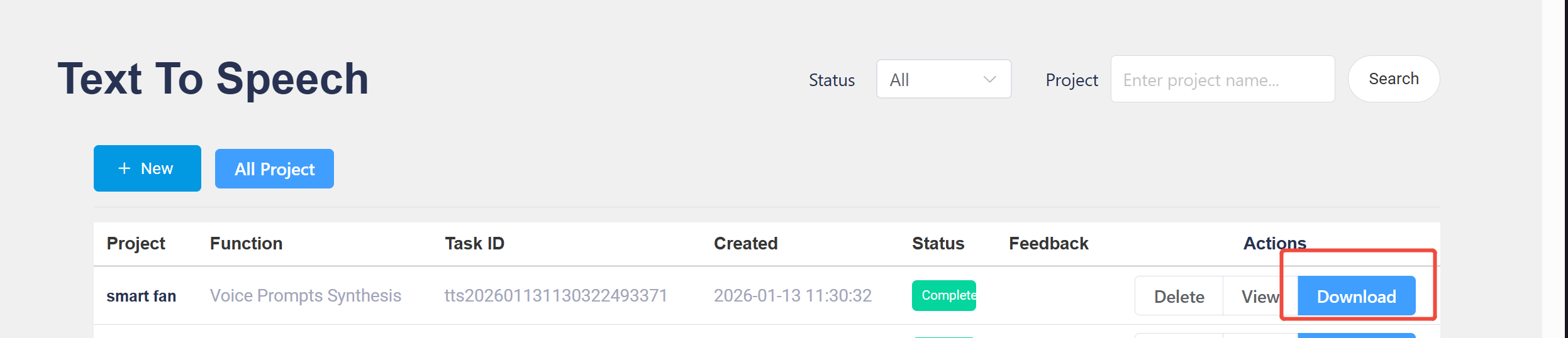
- Wait for the page to indicate successful generation, then click the “Download Voice Synthesis File” button to download:
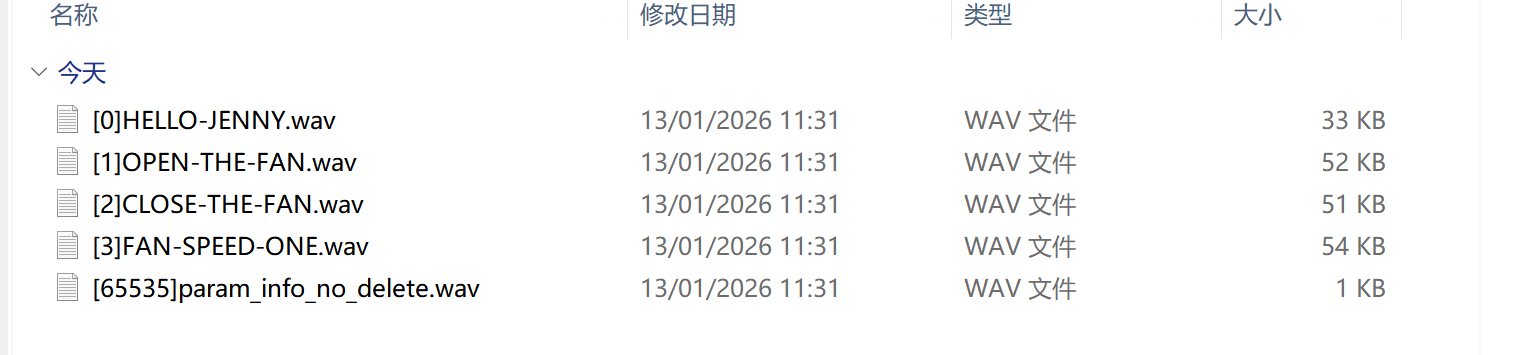
- The following audio files will be downloaded:
4. Firmware Development
4.1. Editing the Command Word Information Table File
Copy the platform generated command word information table file [60000]cmd_info.xlsx obtained in section 2.3 to the path: %SDK_PATH%\projects\sample_xxx\firmware\user_file\cmd_info\, replacing the original [60000]cmd_info.xlsx file. Make relevant modifications, mainly including associating voice prompts, setting wake words, and adjusting recognition sensitivity.

Note
- Model Name: Used to set the model name corresponding to the current set of command words. There are currently two types: NN ID (Acoustic Model File ID) and ASR ID (Language Model File ID).
- Modelfile: Used to set the model ID number for the current set of command words. You can fill in 0 or any number greater than 0, but it must match the [ID] prefix in the filename. For example, if the file is named “[3]asr_xxx_cmd.dat”, the model ID for ASR ID should be 3.
- CommandWord: The string of command words.
- CommandID: A custom ID for the command word, which facilitates rapid development and logic implementation. By default, different command words cannot use the same ID. If necessary, you can modify the script file “cmd_info.bat” by adding “–no-cmd-id-duplicate-check” after the cmd_info.exe command.
- Semantic ID: A custom string semantic ID with uniqueness. This ID can be used to resolve command word conflicts among multiple devices in a home networking scenario.
- confidThresh: Used to adjust the recognition sensitivity of command words and address false recognitions.
- Wake Word: Used to specify the wake word.
- validRecogCnt: Used for cases where a short command word might intercept a longer command word with the same beginning. For example, with “heat up” and “heat up for three minutes,” saying “heat up for three minutes” might be recognized as just “heat up.” The solution is to set a special word count for the “heat up” command word, making the system wait briefly after recognizing “heat up” to see if a longer command follows. However, this value should not be set too large, as it would significantly increase the response time for “heat up.”
- promptPlayOpt: Used to specify the selection method when there are multiple prompt sounds. Currently, two types are supported: “Random” (set select_index to -1 when calling the playback interface) and “User_defined” (set select_index to the desired value when calling the playback interface).
- PromptID: The ID of the prompt sound file (i.e., the audio serial number in Chapter 4). Use ‘+’ to concatenate multiple sounds for combined playback (up to 16 sounds). For multiple selectable prompts, each option occupies one column, with a maximum of 127 columns.
- Group ID (table name)
<0>cmdor<1>wake: Used for multi-model switching. In the SDK demo, 0 is the default command word model, and 1 is the wake word model.
Tip
- If there are prompts not associated with any command words, you can create a dummy command word. This means the command word string is not used to generate the language model and will not be recognized, but it can still be used to play the associated prompt.
- The ID in the command word information table filename must be 60000 and cannot be changed, e.g.,
[60000]cmd_info.xlsx. - Properly applying combined playback, selective playback, and multi-model switching can help reduce firmware size and save FLASH space.
4.2. Editing Code to Implement Project Requirements
- The user logic is primarily implemented in the
system_msg_deal.cfile. - The
UserTaskManageProcessfunction handles various messages such as voice recognition messages, key messages, and UART messages. - Locate the messages you need to handle and implement the corresponding logic, such as IO control, prompt sound selection, model switching, parameter adjustment, and UART reporting.
- If you need to save information across power cycles, you can use the
ci_nvdmmodule. Refer to the volume setting code in the standard demo of the SDK for an example.
Note
- If you use command words to switch models and the model-switching command has voice prompts, pay attention to the order of calling the model-switching interface and the voice prompt interface, which depends on which model contains the prompt sounds.
4.3. Synthesizing and Flashing the Firmware
4.3.1. Copying Resource Files
The firmware production directory is as follows:
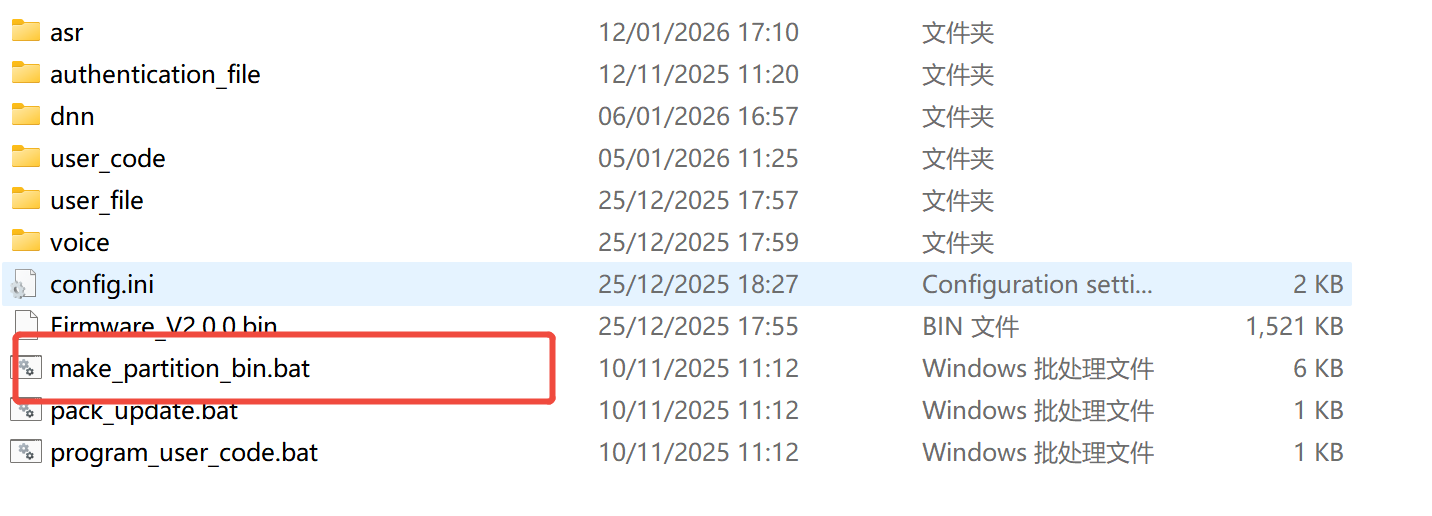
- Place the language model file
***.datgenerated in Chapter 2 into the asr directory under the firmware directory. Making sure the language model file Number[0]or[1]correspondant with the language modelfile number in the CMD information table. If using dual-network, place both the wake word and command word language models in this directory. - Place the acoustic model file
[0]G3-GE-EN-S-V01206.fefixbin146generated in Chapter 2 into the dnn directory under the firmware directory. Making sure the acoustic file Number[0]or[1]correspondant with the acoustic modelfile number in the CMD information table. - Place the prompt voice files (WAV format audio files from the TTS_wav directory) generated in Chapter 3 into the voice directory under the firmware directory.
- Compile and Generate
user_code.binin the user_code directory, refer to SDK Quick Start. - Run
make_partition_bin.batby double-clicking. After completion,*.binfiles with the same names as the directories will be generated in theasr,dnn,user_file, andvoicedirectories.
4.3.2. Packaging the Firmware
For Pack and update, double-click Pack_update.bat. In the pop-up interface, select CI130X and then choose Packaging For more information on using the tool, press F1 to view help.
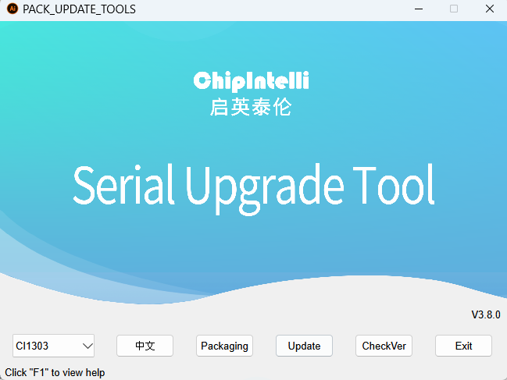
Click on Packaging.
Enter the packaging interface:
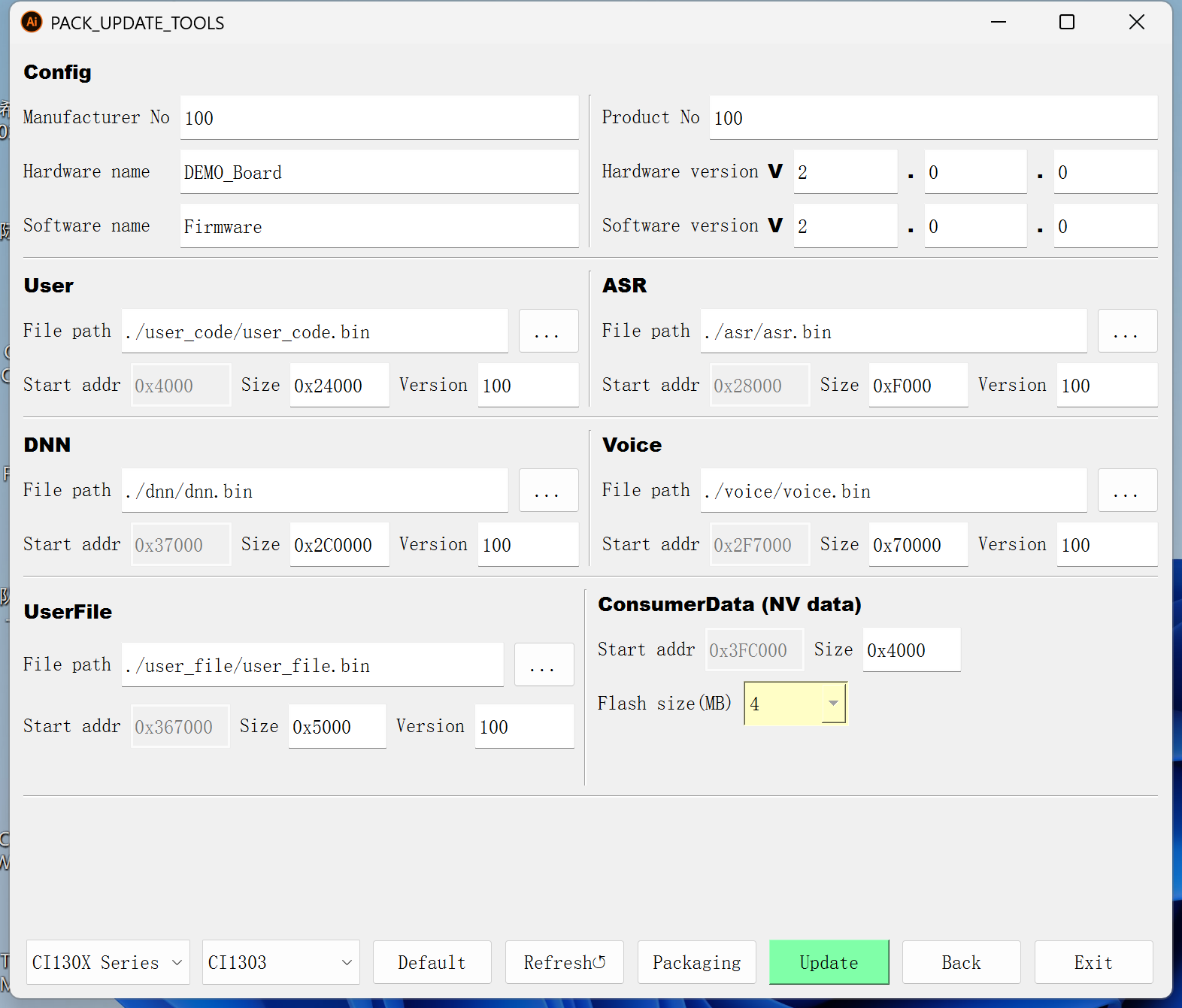
Note
- Config: Hardware and software information area.
- User, ASR, DNN, Voice, UserFile, etc.: Firmware partition information area.
- Menu bar.
Packaging Steps:
- Fill in the hardware and software information in the version information area.
- Select or fill in the bin file paths for each partition.
- Click “Packaging.”
- If a pop-up indicates an address conflict, adjust the partition sizes and repeat step 3.
- A pop-up saying “Firmware generated successfully” indicates successful packaging.
- For more details and troubleshooting regarding the firmware packaging interface, refer to the SDK documentation: UART Serial Port Debugging Tool User Guide.
4.3.3. Flashing the Firmware
Click “Firmware Update” in the pack and updatetool:
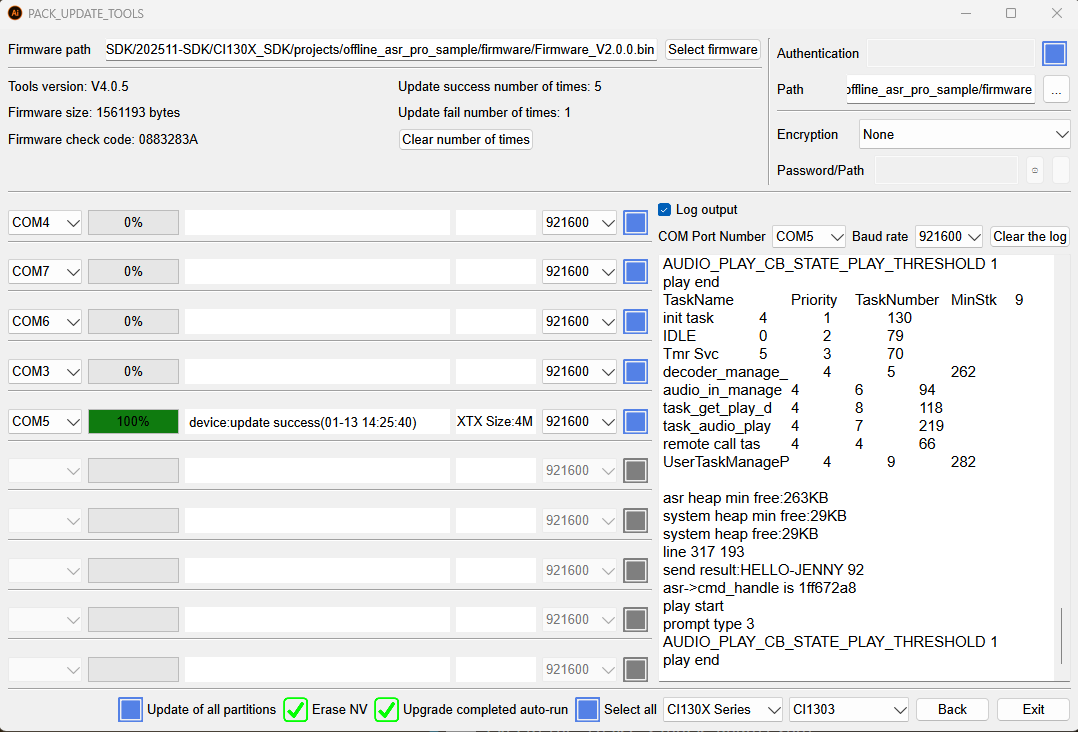
- Select or enter the firmware path.
- Check the COM port of the device to be programmed.
- Other options: Update of all partitions, authentication and encryption.
- Switch the module to be upgraded to upgrade mode (short the PG and EN pins).
- Restart the device to be upgraded to begin the upgrade.
- Wait for the upgrade to complete. If successful, the device will automatically boot into the firmware code. If there is a power-on prompt sound, you will hear it.