ChipIntelli EQ Equalizer Operation Manual
1. Algorithm Overview
1.1 EQ Equalizer Feature Introduction
The EQ Equalizer is a precision audio signal processing tool primarily used to adjust sound across different frequency bands to achieve balanced audio output. For example, reducing low-frequency gain can minimize low-frequency noise, while increasing high-frequency gain can enhance vocal details. The current EQ features 9 independently adjustable frequency bands, which will be described in detail later.
1.2 Core Parameter Description
Center Frequency: The focal point of the frequency band (unit: Hz)
Bandwidth: The width of the affected frequency range (unit: Hz)
Gain: Volume adjustment for the frequency band (unit: dB, range: ±20dB)
2. Detailed Explanation of Core Parameter Adjustment
2.1 Center Frequency and Bandwidth
Within the specified ranges, you can modify the following default center frequencies and bandwidth parameters to adjust the influence range of each frequency band’s gain. The default frequency band distribution is as follows:
- Band 1: Default 62Hz (Range: 31-62Hz) | Bandwidth: Default 35Hz (Range: 16-62Hz)
- Band 2: Default 125Hz (Range: 100-150Hz) | Bandwidth: Default 65Hz (Range: 50-150Hz)
- Band 3: Default 250Hz (Range: 200-300Hz) | Bandwidth: Default 150Hz (Range: 100-300Hz)
- Band 4: Default 500Hz (Range: 400-600Hz) | Bandwidth: Default 300Hz (Range: 250-500Hz)
- Band 5: Default 1000Hz (Range: 800-1200Hz) | Bandwidth: Default 650Hz (Range: 400-800Hz)
- Band 6: Default 2000Hz (Range: 1500-2500Hz) | Bandwidth: Default 1250Hz (Range: 1000-2000Hz)
- Band 7: Default 3000Hz (Range: 2500-3500Hz) | Bandwidth: Default 1650Hz (Range: 1500-3000Hz)
- Band 8: Default 4000Hz (Range: 3500-4500Hz) | Bandwidth: Default 2250Hz (Range: 2000-4000Hz)
- Band 9: Default 7500Hz (Range: 6500-7900Hz) | Bandwidth: Default 3500Hz (Range: 3500-5000Hz)
2.2 Gain Adjustment
- Safe Range: -12dB to +12dB
- Golden Rule: Prioritize reduction (-3dB noise reduction > +3dB boost). Avoid adjacent band overlaps exceeding ±6dB.
Tool Usage and EQ Debugging Method
(1) Configure Debugging Serial Port
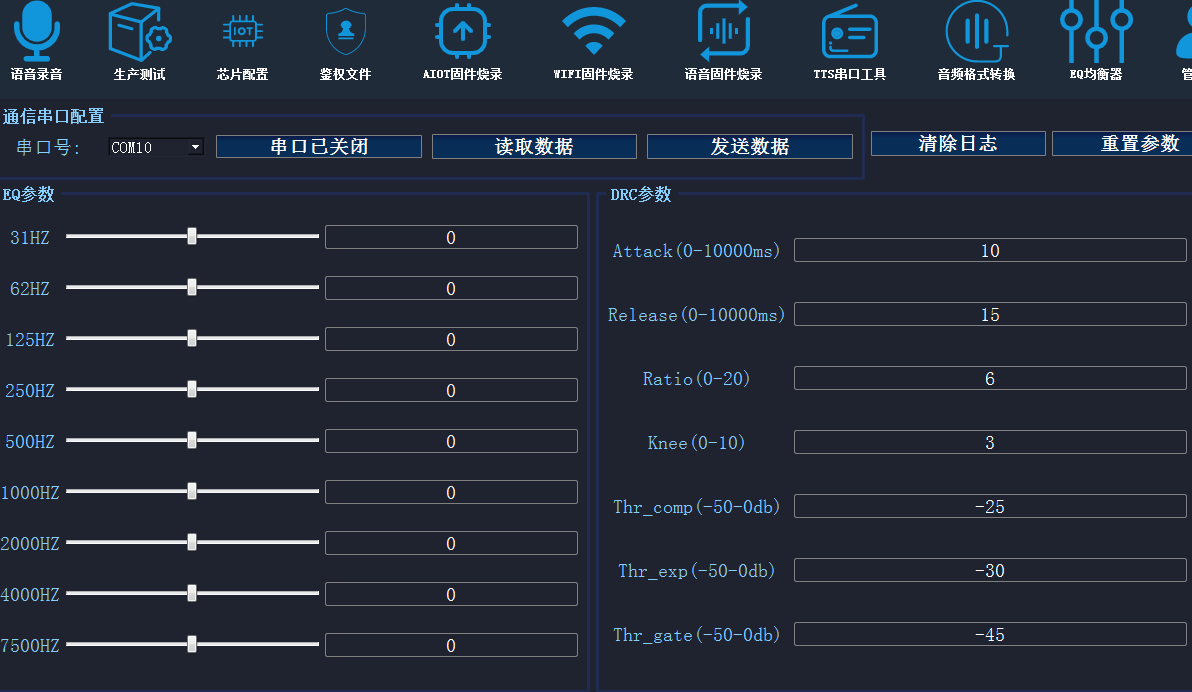
Download the EQ Equalizer tool from the “Development Resources” section of the ChipIntelli AI Platform (chipintelli-audio-tools). Open the ChipIntelli EQ Equalizer tool and configure the corresponding serial port. In the EQ parameters section, the left side displays the frequency bands, and the right side shows the gain input fields.
(2) Adjust Gain
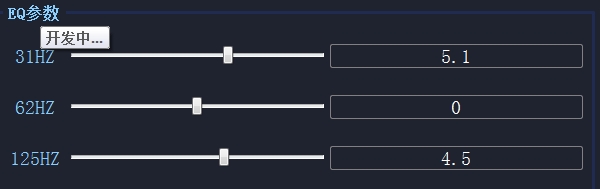
Select the corresponding frequency band to adjust its gain. As shown in the figure below, the gain for the 31Hz band is set to 5.1dB.
3. Parameter Modification
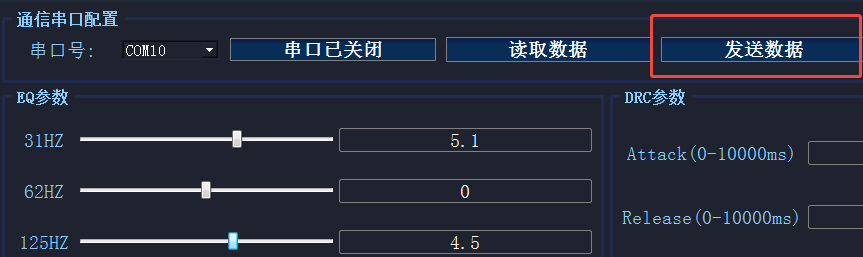
After configuring the bandwidth and gain for each frequency band, click “Send Data” to modify the internal EQ parameters of the chip, thereby achieving the desired sound quality effect, as shown in the figure below.
4. Effect Verification
Connect two devices (Device A and Device B). If using walkie-talkies, turn on both devices and set them to the same channel. Have one person speak into Device A while another person listens to the processed audio from Device B. If the sound quality meets expectations, the debugging can be concluded. If not, repeat the above steps until the desired effect is achieved.
Below are examples of how different frequency bands affect sound perception:
60Hz: Belongs to the low-frequency range. Adjusting the gain in this band has minimal impact on vocal perception and can be used to suppress environmental low-frequency noise, such as “humming” sounds.
125-500Hz: This is a critical frequency band affecting vocal strength and perception. Increasing the gain can make the voice more powerful but may cause muddiness, while decreasing it can make the voice sound thin. This is the primary adjustment band for vocals and should be prioritized.
500-1000Hz: This band still affects vocal perception, and excessive gain may cause vocal distortion.
1000-4000Hz: Primarily affects vocal timbre and clarity. Appropriate gain increase can make the voice sound brighter, but excessive increase may still cause distortion.
4000-8000Hz: Excessive gain in this range can make the voice sound harsh, and sibilance in vocals is typically concentrated in this band.
Note: To enhance the gain of a specific frequency band, you can directly increase its gain and appropriately reduce the gain of adjacent bands.